Salesforce Agent
End-to-end walkthrough for onboarding a Salesforce Agent via the Trusted Agent Huddle to the gallery using the AI Refinery runtime.
This walkthrough shows how to add the Salesforce Agent via the Trusted Agent Huddle, upload its runtime definition, configure credentials, and run validation queries inside the Agent Gallery.
1. Create the Salesforce Agent
From the Agent Gallery toolbar select Add Agent, pick the owning organisation, and fill out the metadata (identifier, display name, description, licence, and type) for the Salesforce Agent.
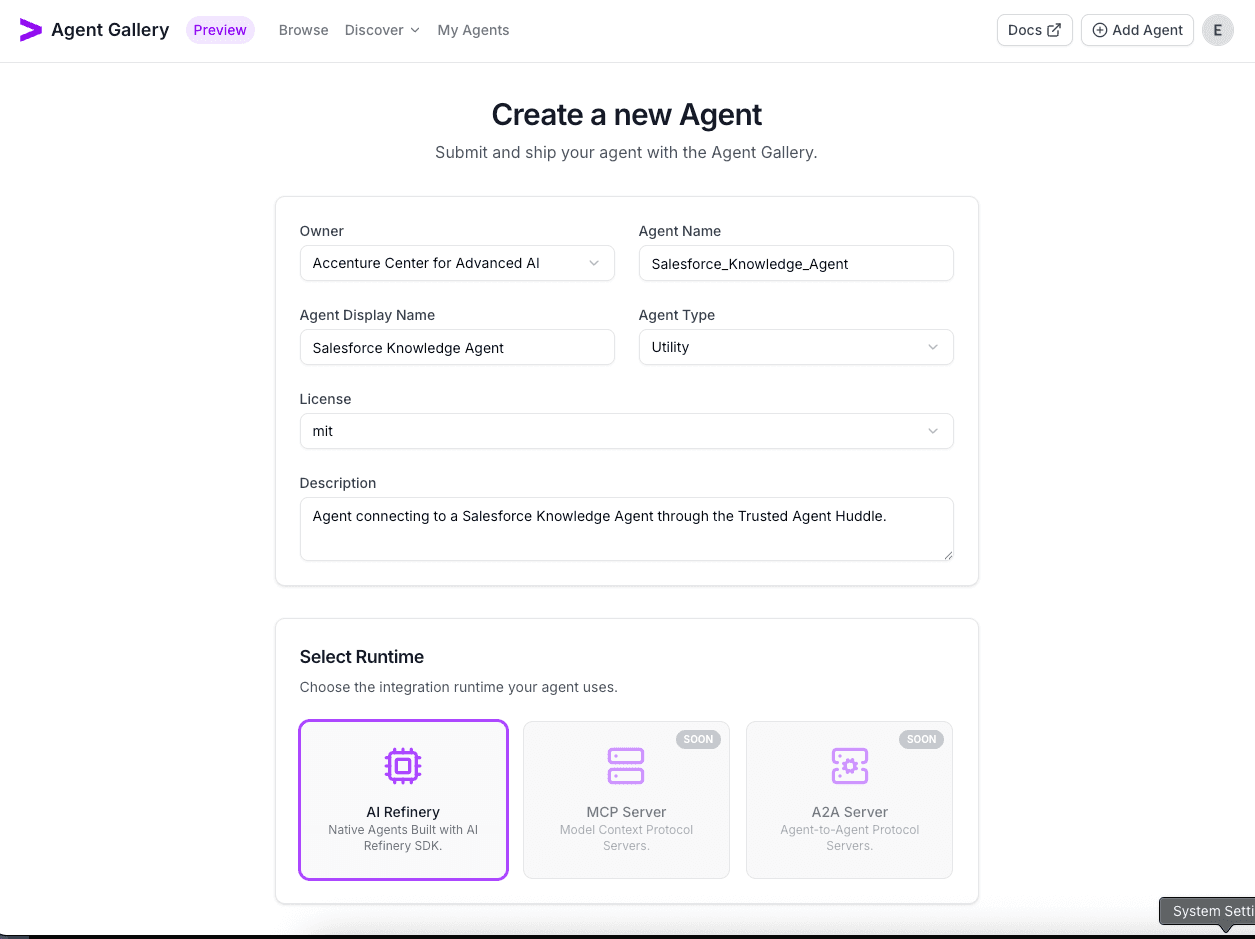
Click Create Agent to provision the new entry and advance to its overview page.
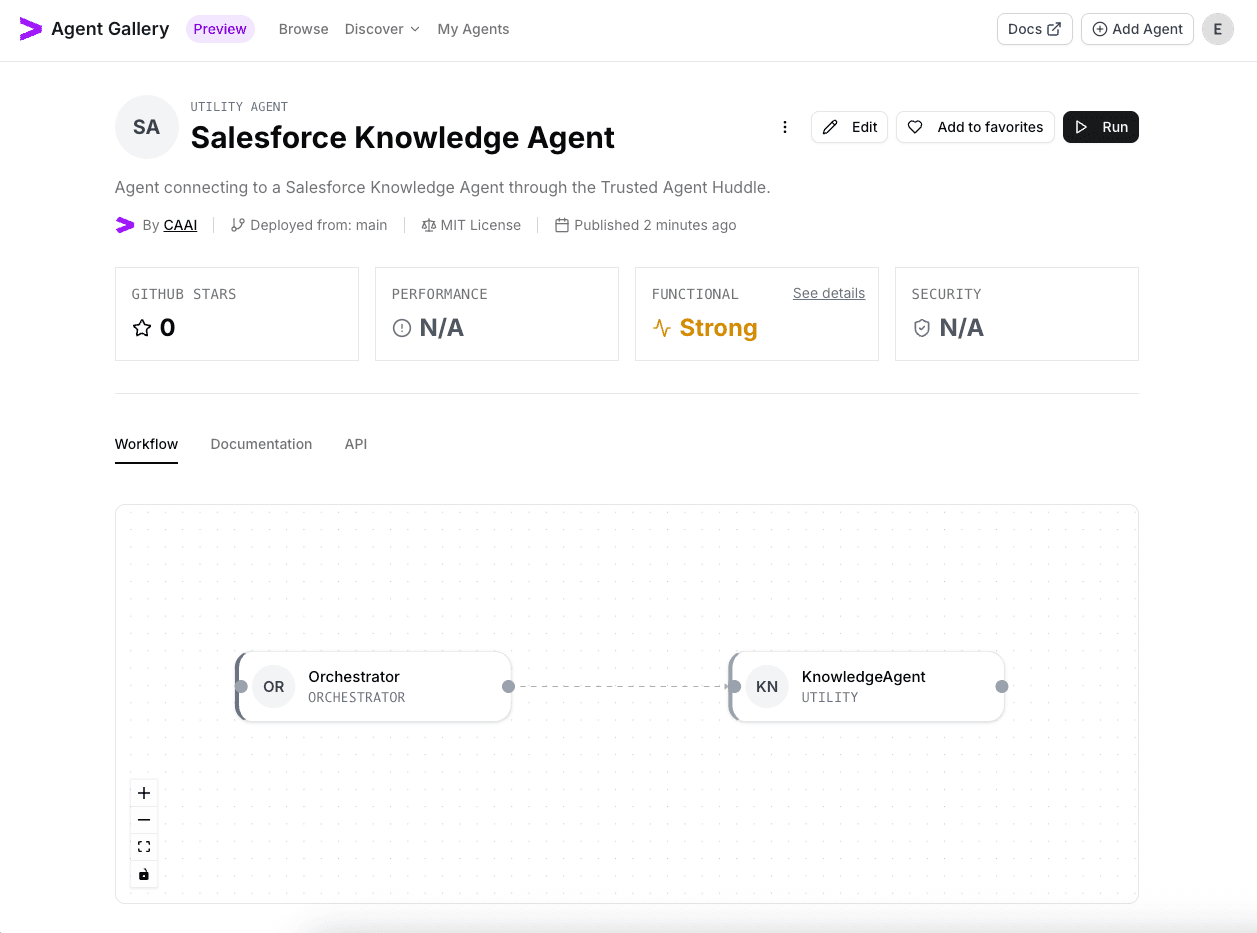
2. Upload the runtime YAML
Use Edit → Runtime, confirm the runtime type matches your Salesforce integration, and upload example.yaml with the agent definition below.
orchestrator:
  agent_list:
    - agent_name: "KnowledgeAgent"

utility_agents:
  - agent_class: SalesforceAgent
    agent_name: "KnowledgeAgent"
    agent_description: "The KnowledgeAgent can answer questions based on its knowledge library."
    config:
      client_key: "SALESFORCE_CLIENT_KEY" # Required Client Key
      client_secret: "SALESFORCE_CLIENT_SECRET" # Required Client Secret
      domain: "your-organization-domain-url.develop.my.salesforce.com" # Required Salesforce oraganization URL
      agent_id: "YOUR_AGENT_IDENTIFIER" # Required agent ID
      contexts: # Optional additional agent contexts
        - "date"
        - "chat_history"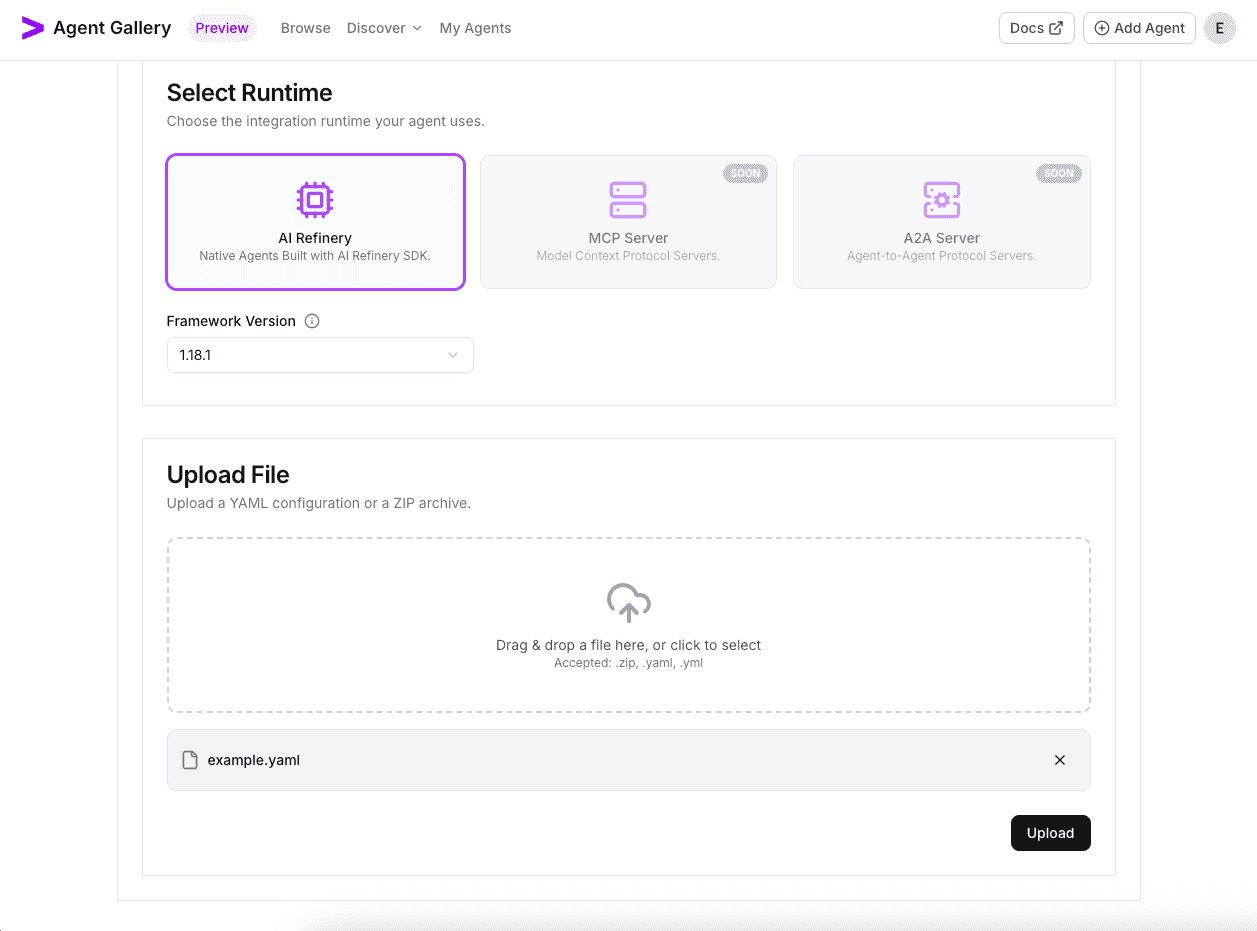
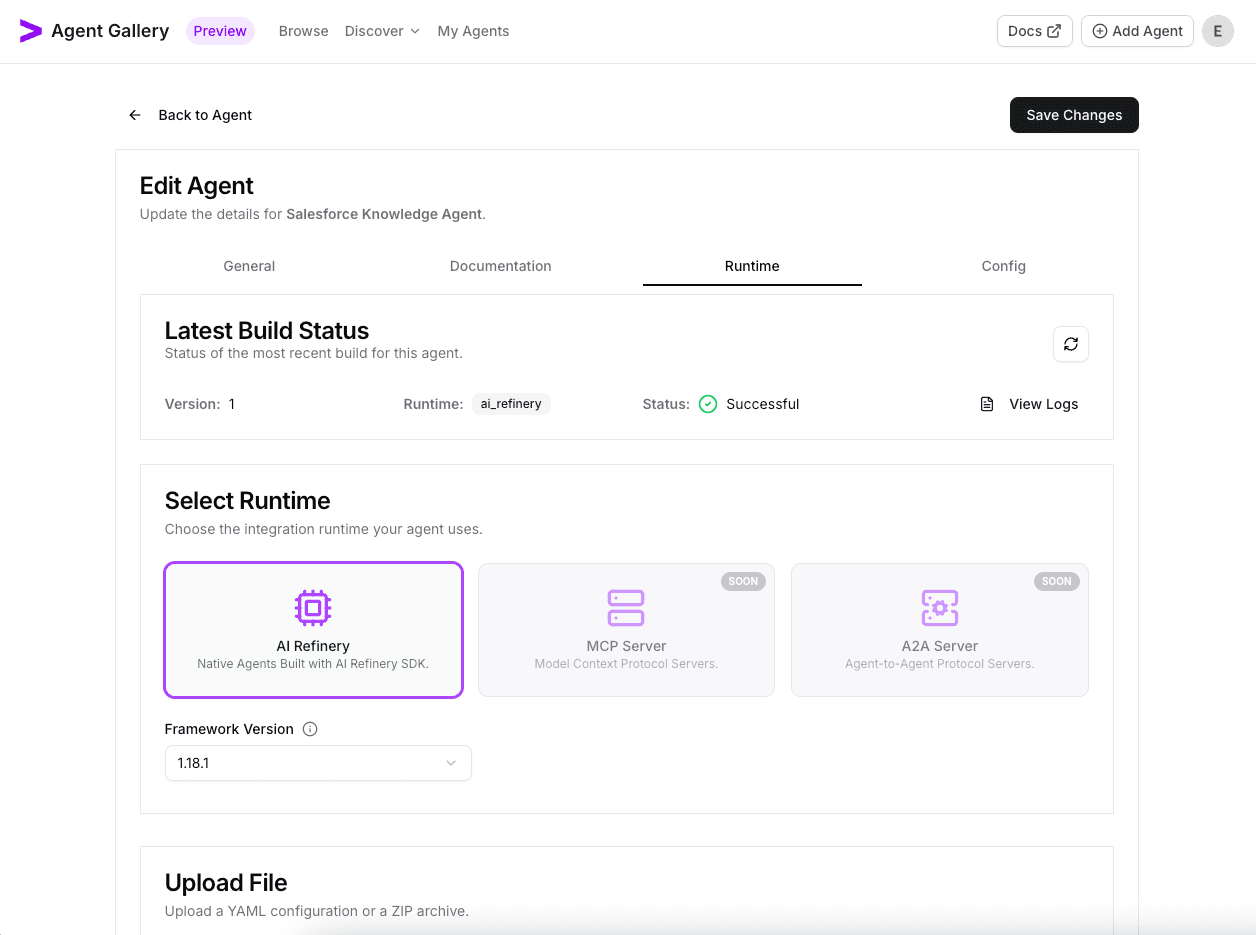
You should see in the build status that the runtime is successfully uploaded.
3. Register configuration values
Open the Config tab, choose Add Configuration, and register each Salesforce environment variable referenced in the YAML. Mark the variables as required and masked accordingly.
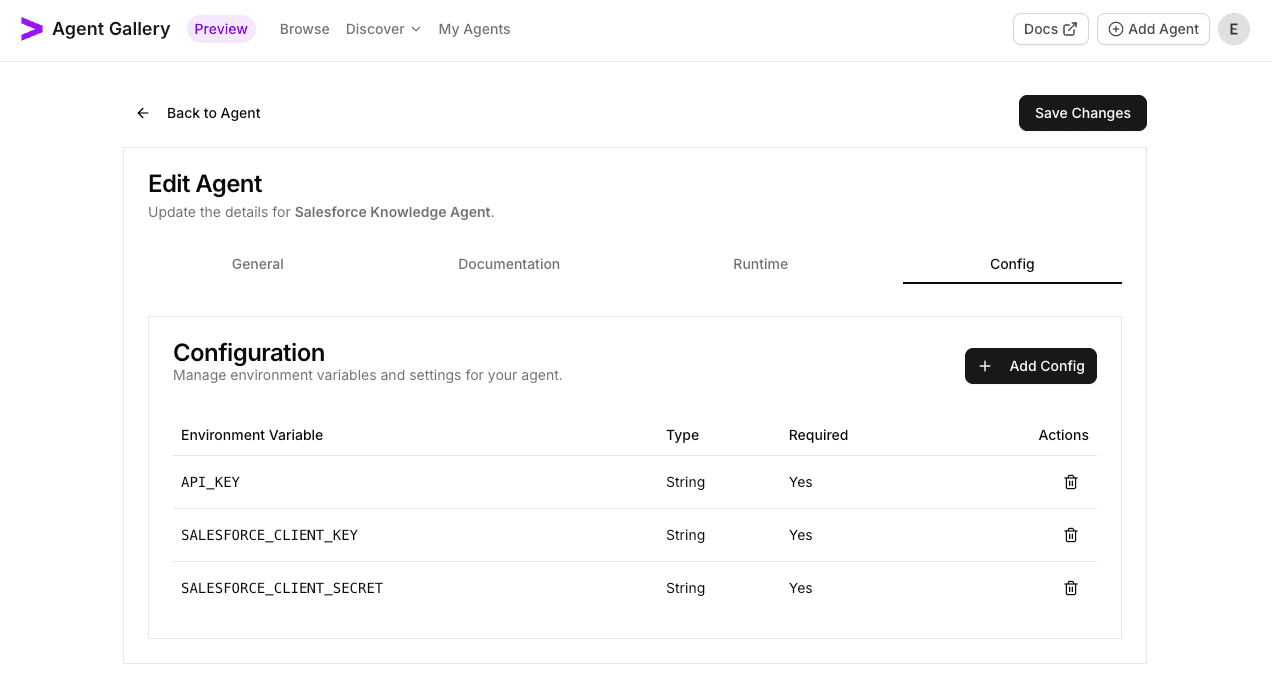
| Environment Variable | Type | Required | Description |
|---|---|---|---|
API_KEY | String | Yes | Your AI Refinery API key. |
SALESFORCE_CLIENT_KEY | String | Yes | Client key used to authenticate requests to Salesforce. |
SALESFORCE_CLIENT_SECRET | String | Yes | Client secret paired with the Salesforce client key. |
These values are prompted before a run.
4. Launch a validation run
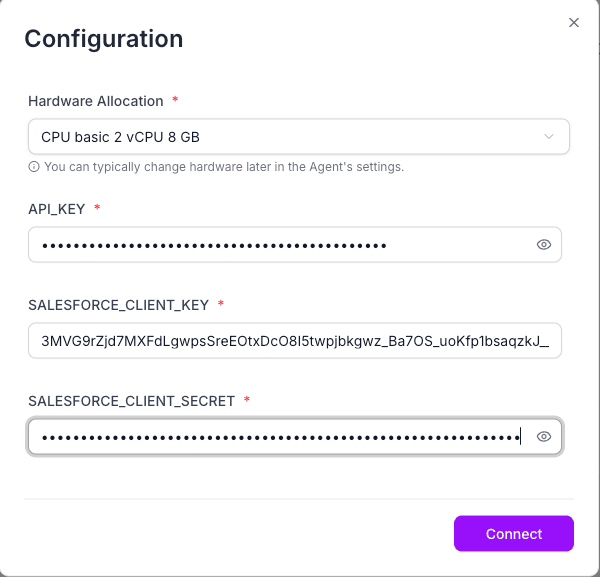
Return to the agent overview and select Run. Choose the hardware preset, populate the configuration fields with valid Salesforce credentials, and run the agent.
5. Issue starter queries
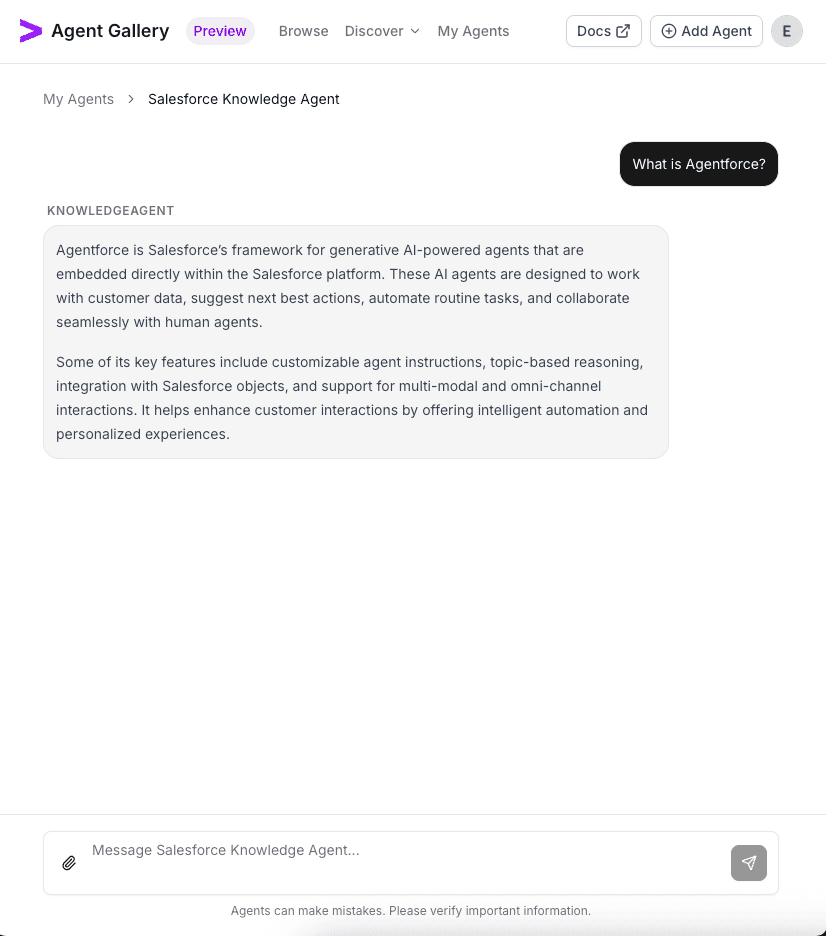
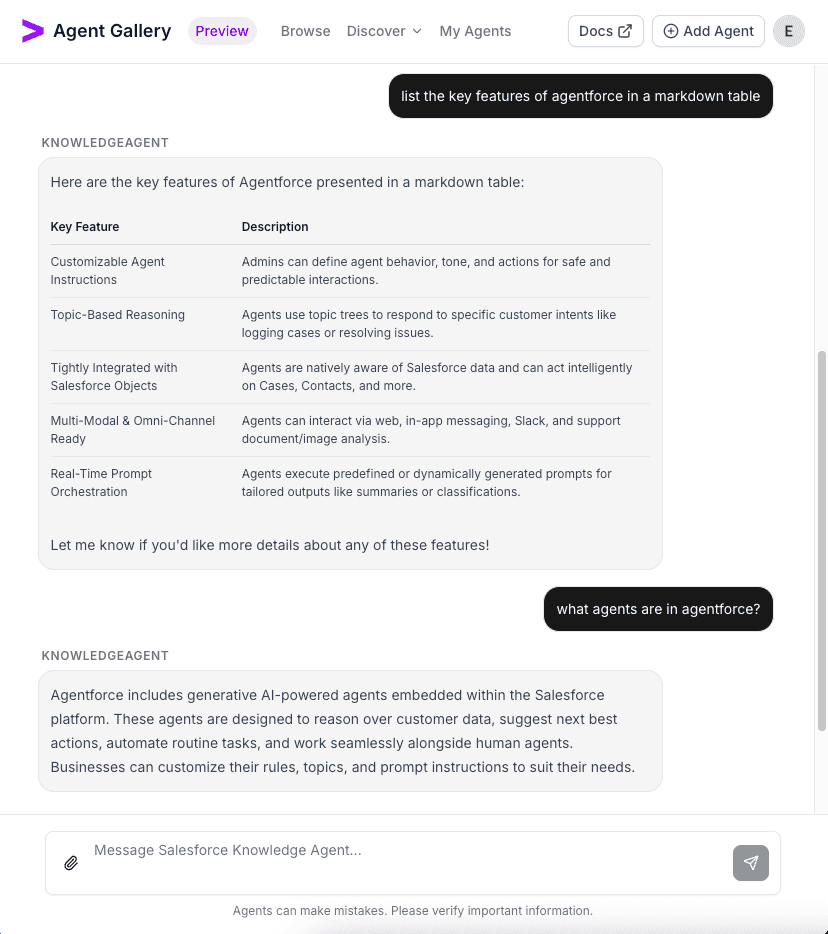
Use the chat input to ask introductory questions that verify the KnowledgeAgent responds correctly—for example, ask the agent to surface knowledge articles or common support answers. Confirm the responses look correct.
6. Wrap up the session
When validation is complete, shut down the run to release compute resources.