Example: Setup and Test a Vision Team
End-to-end walkthrough for provisioning a multimodal Vision Team, uploading its flow, and validating image understanding and generation inside the Agent Gallery.
This example expands on the general onboarding guide with a concrete Vision Team implementation. You will create the agent entry, upload a Flow-based runtime, supply the required configuration, and verify that both perception and generation stages return results.
1. Create the Vision Team
From the Agent Gallery top bar, choose Add Agent, then select the organisation that will own the Vision Team. In the Agent Metadata form, provide the agent identifier, display name, description, license and type.
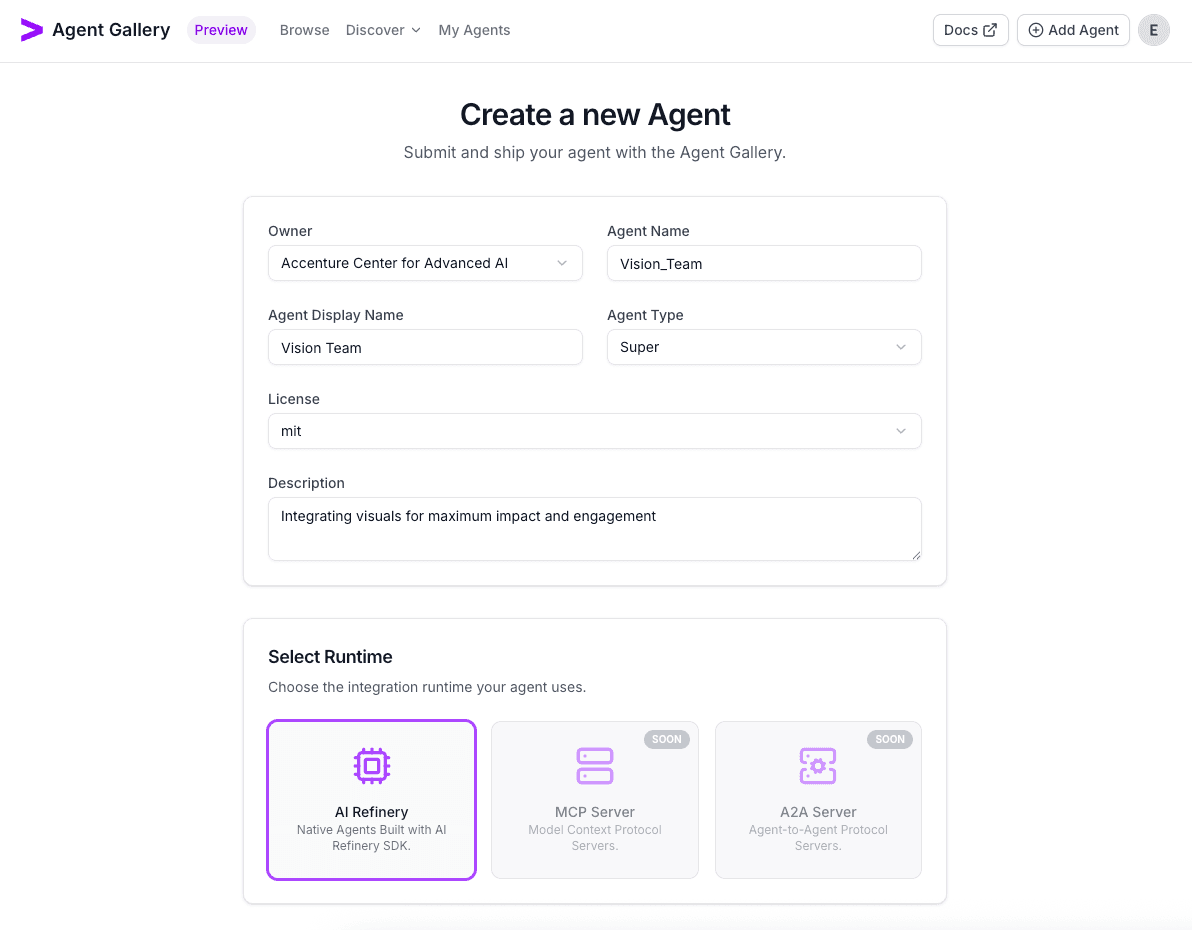
We are using the AI Refinery runtime type. Confirm the visibility (Public or Private) and click Create Agent to provision the entry.
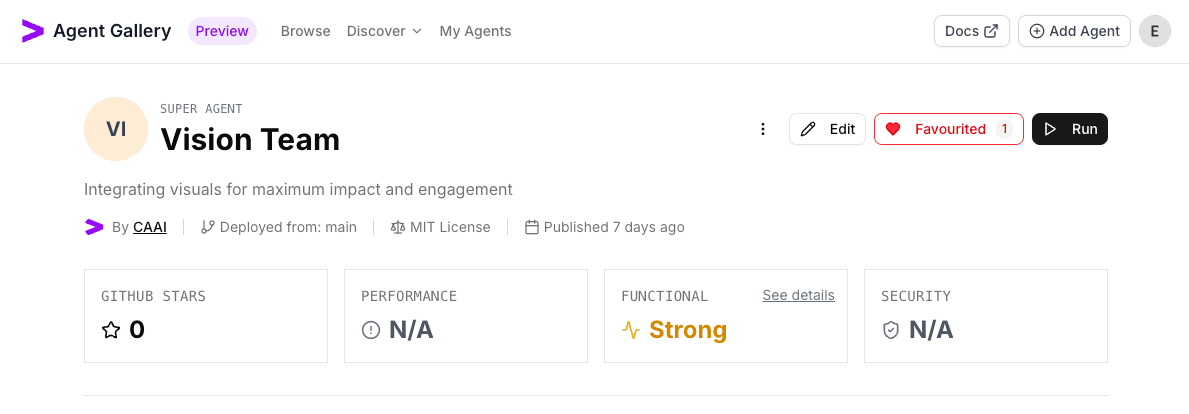
2. Upload the AI Refinery YAML
Open Edit, move to the Runtime tab, and leave AI Refinery selected as the runtime. Drag-and-drop the vision_team.yaml (or choose it from the file picker) into the Upload a File dropzone.
team:
  name: "Vision Team"
  description: "Integrating visuals for maximum impact and engagement"
orchestrator:
  agent_list:
    - agent_name: "Image Understanding Agent"
    - agent_name: "Image Generation Agent"
utility_agents:
  - agent_class: ImageUnderstandingAgent
    agent_name: "Image Understanding Agent"
    agent_description: "Image Understanding Agent is able to help the user answer questions about a given image."
    config:
      output_style: "markdown"
      context:
        - "chat_history"
        - "date"
  - agent_class: ImageGenerationAgent
    agent_name: "Image Generation Agent"
    agent_description: "Image Generation Agent is able to generate images based on the user request."
    config:
      output_style: "markdown"
      context:
        - "chat_history"
        - "date"
Pick the framework version that matches the AI Refinery SDK used during development (1.13.x and above use just an API key, while 1.12.x and below use an Account and API key).
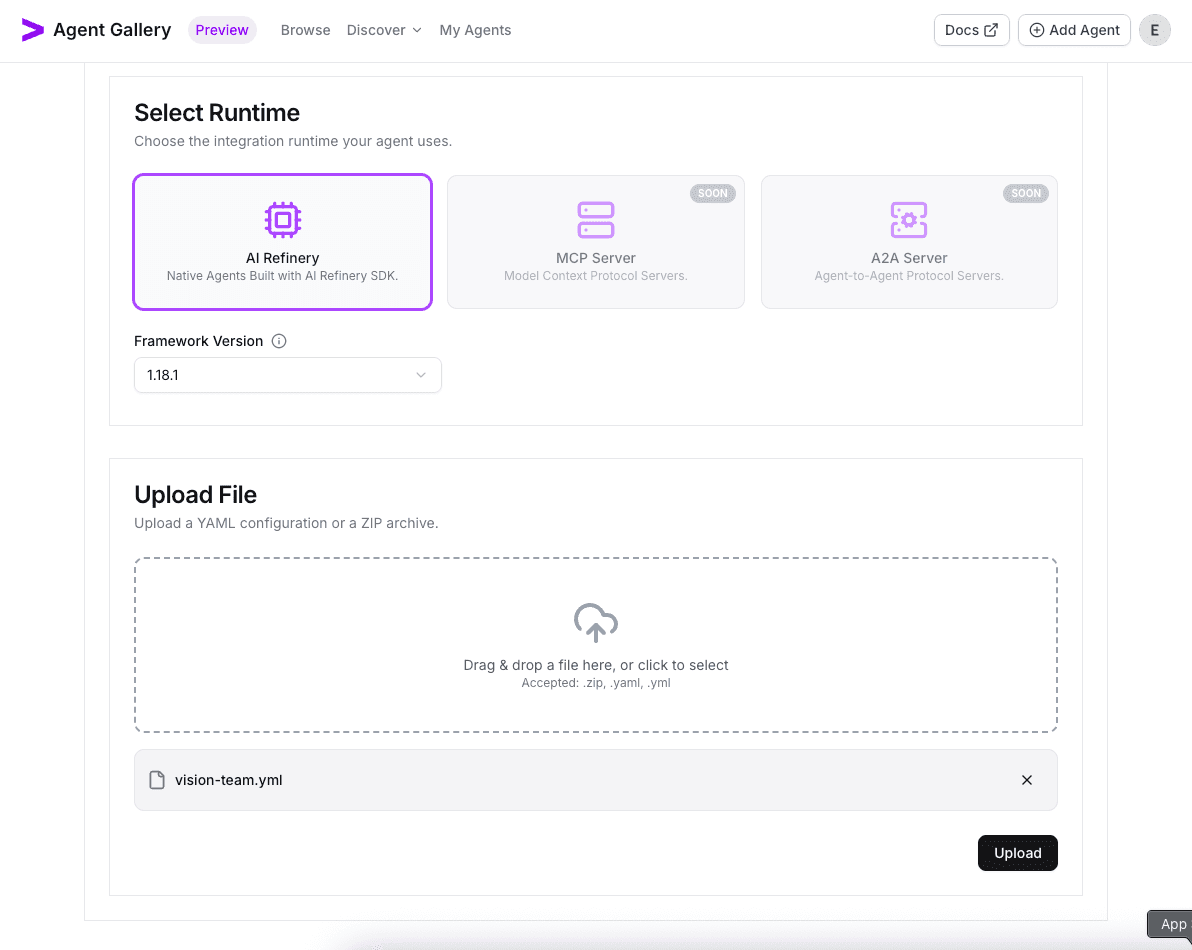
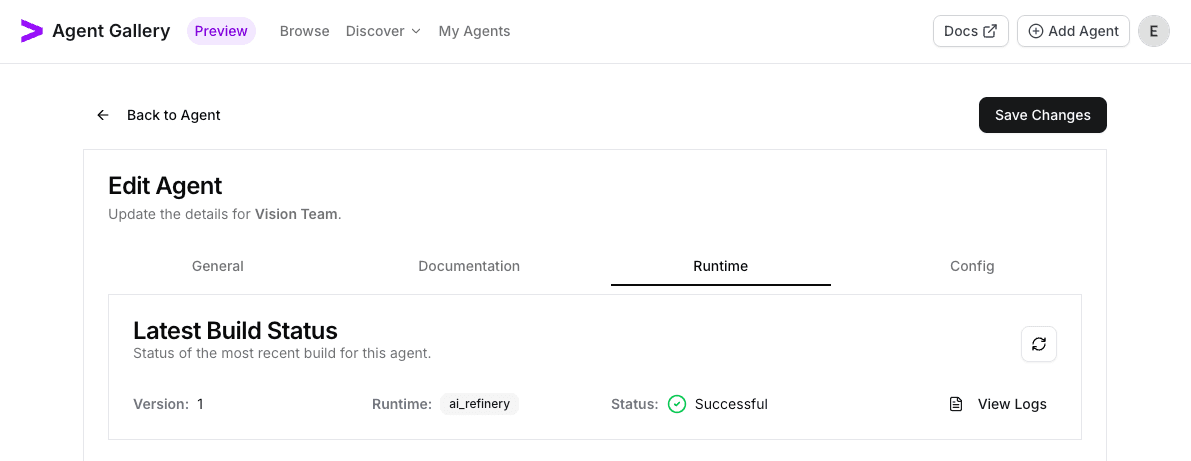
When the upload finishes, the build kicks off automatically. Wait for the status to report success before continuing.
3. Register configuration values
Switch to the Config tab and click Add Configuration. Capture any required environment variables—for example, API keys for vision models or storage buckets—and mark whether each value is required or masked.
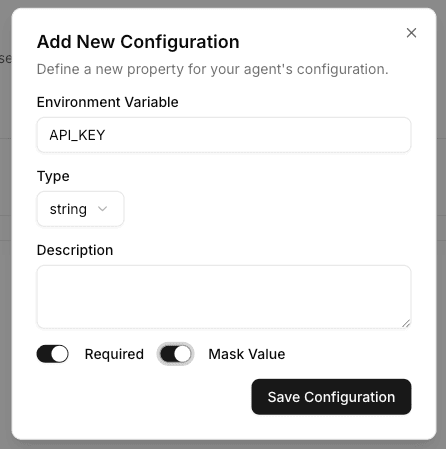
Save the configuration. You should see the variables listed with their requirement and masking flags.
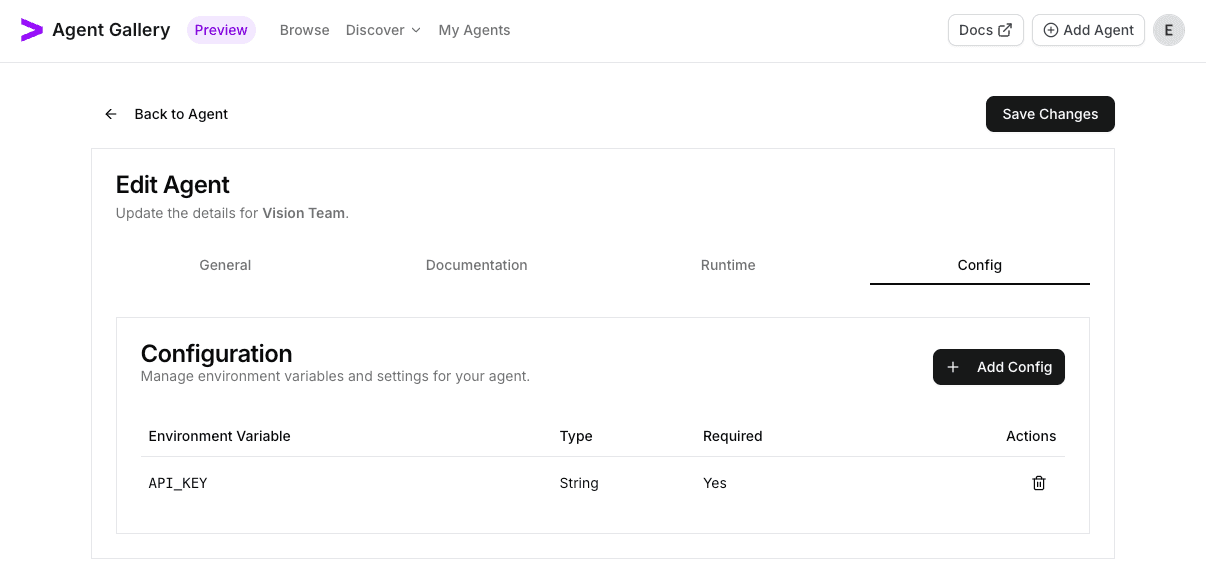
4. Launch a test run
Return to the agent overview using the Back to Agent button.
The workflow tab should have updated to reflects the agent hierachy defined in the YAML.
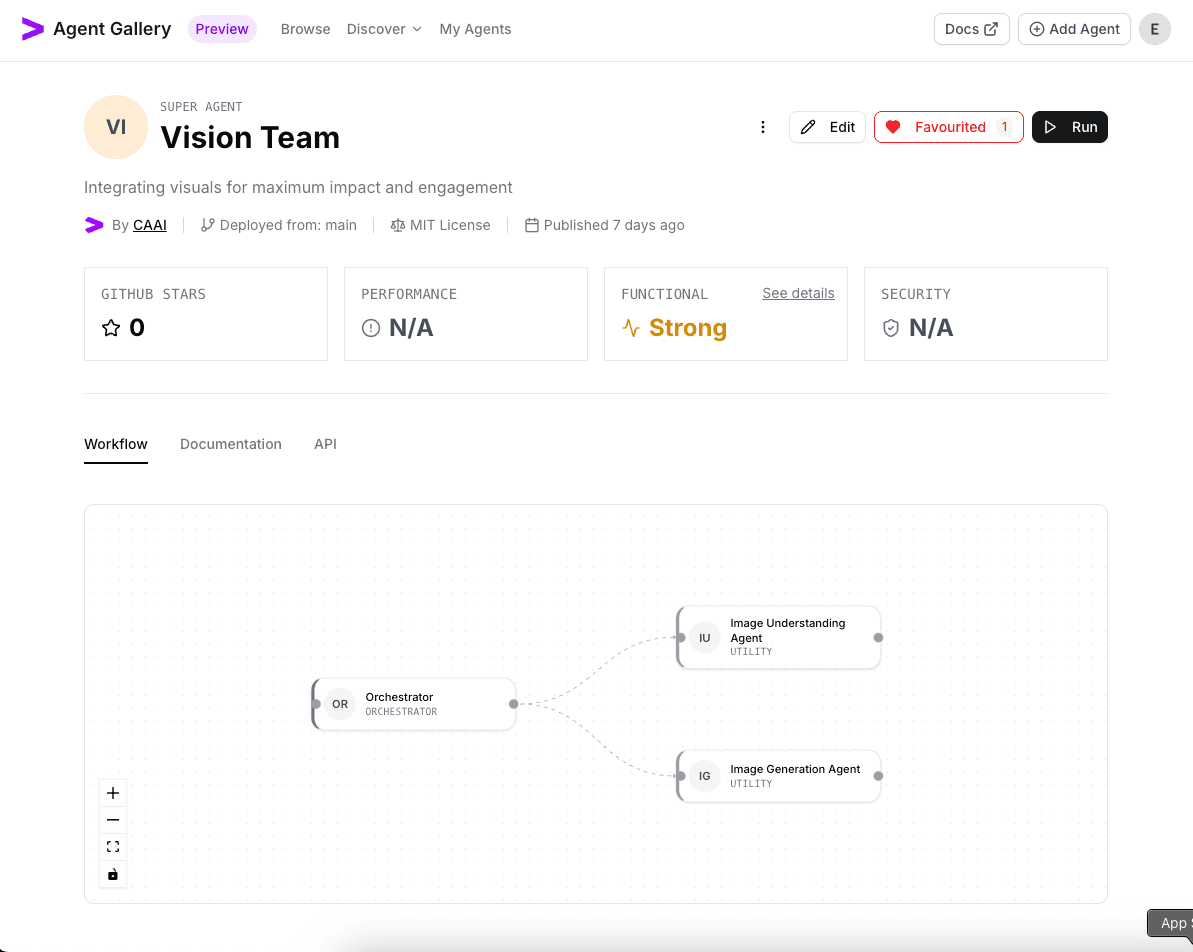
Select Run. Choose the hardware preset, provide the configuration values requested, and start the session.
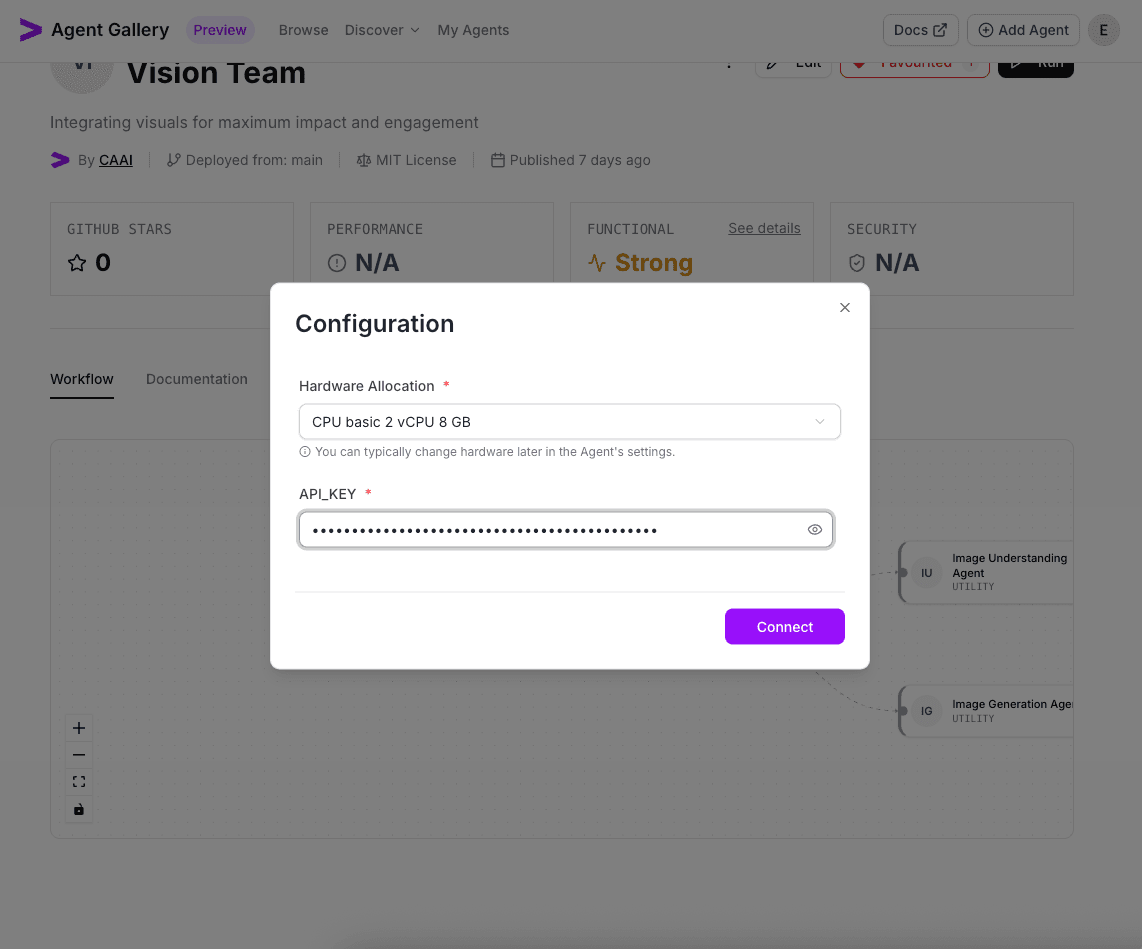
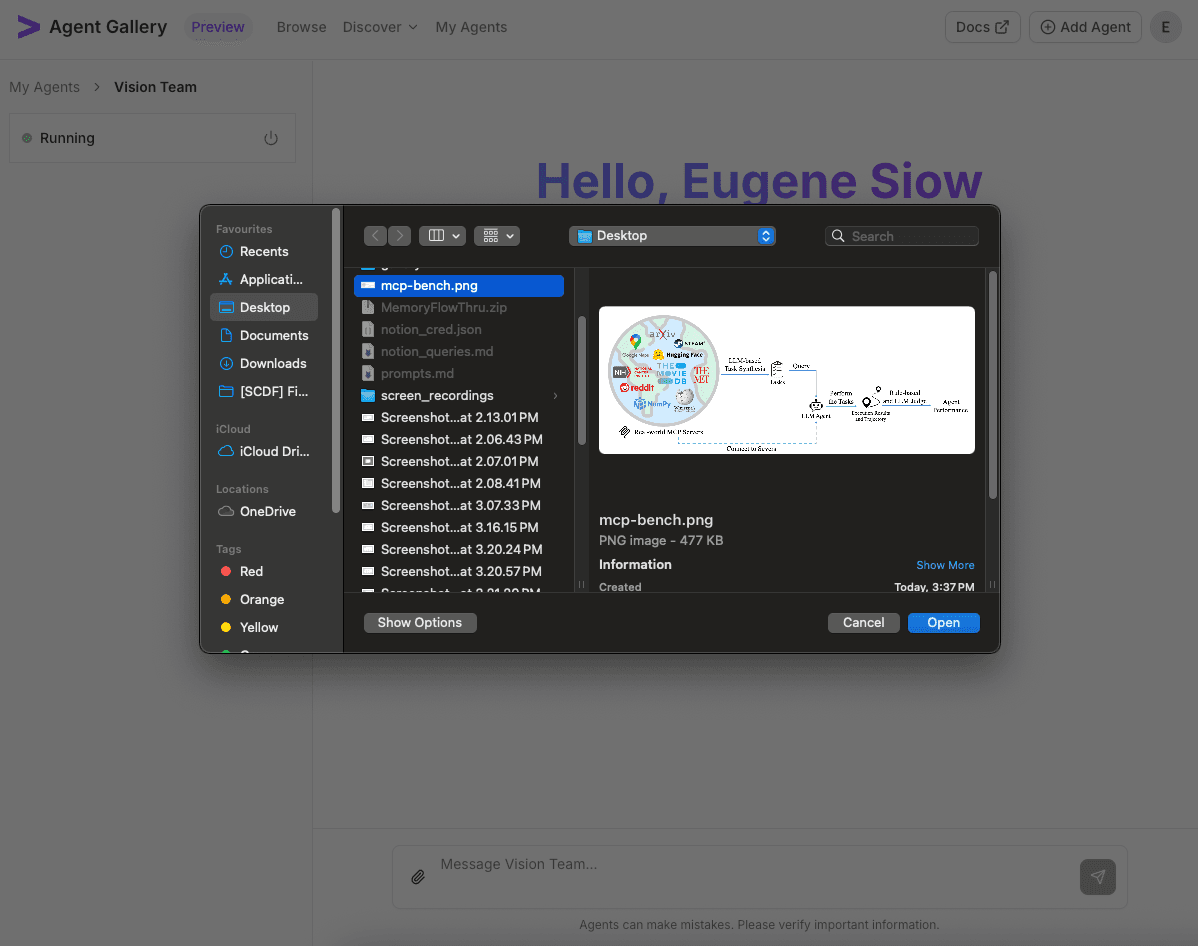
Once the session provisions, upload an image through the paper clip (attachment) icon beside the chat box. Also include a text prompt in the chat box like describe the image.
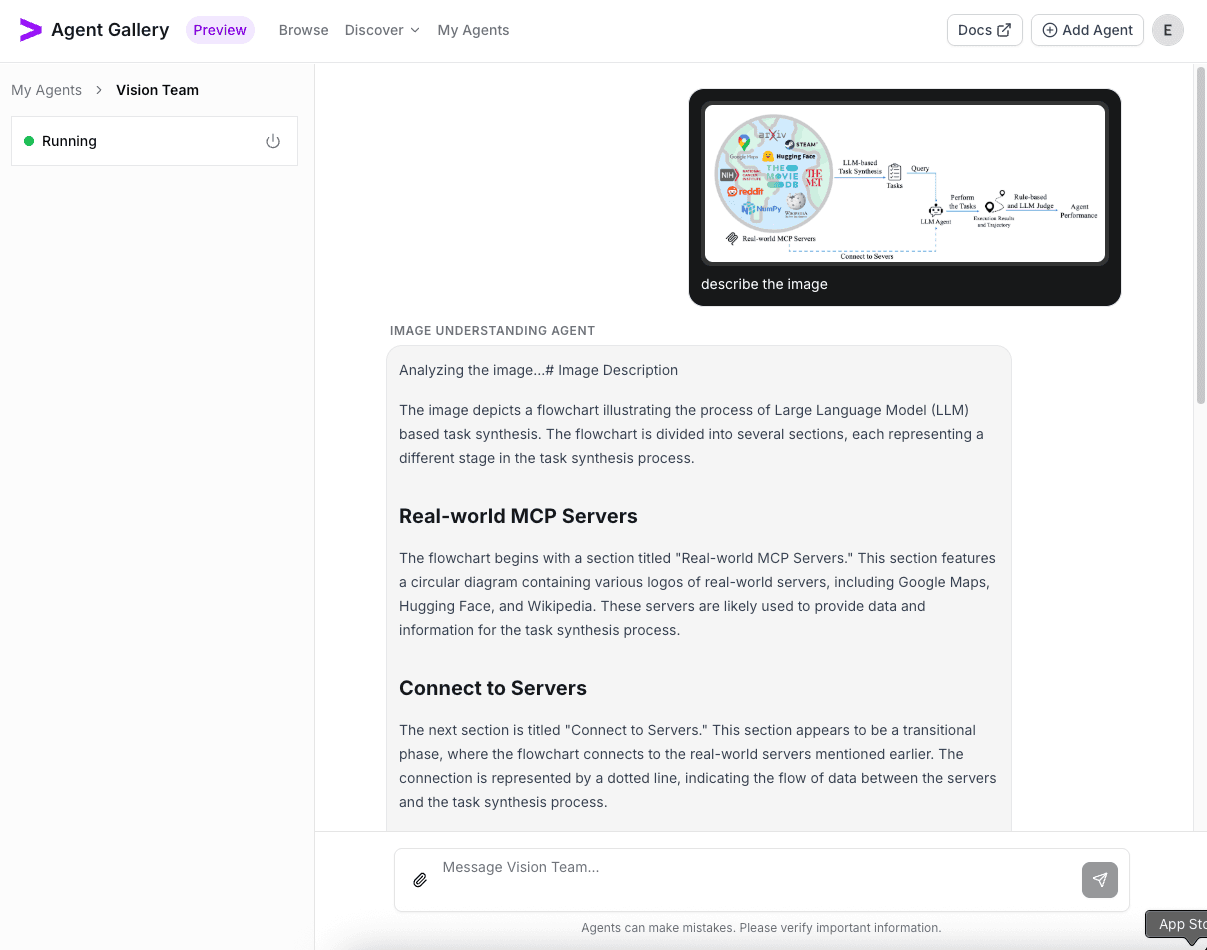
The image understanding agent is triggered by the orchestrator which then processes the image using a foundation large multimodal model.
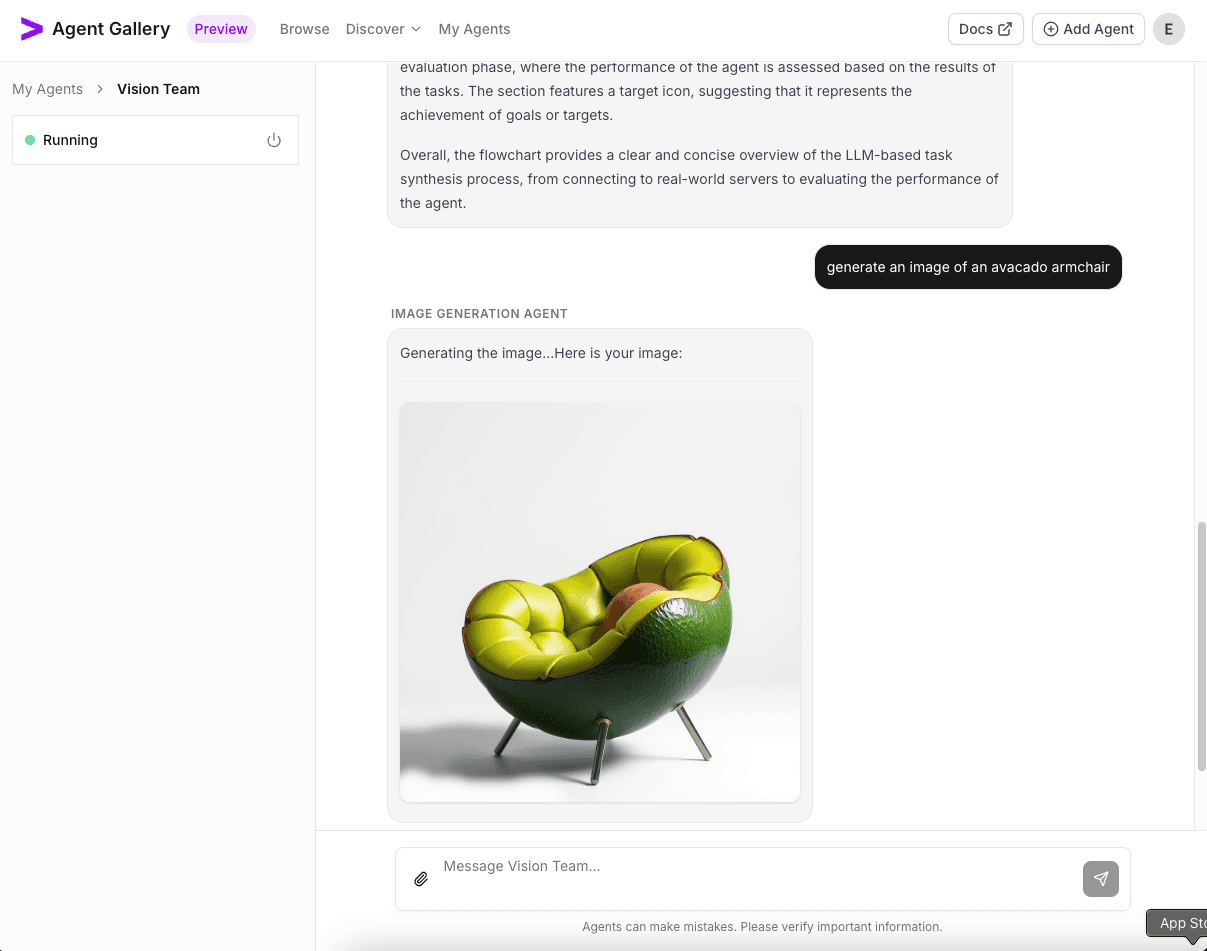
Use a prompt like generate image of ... for the orchestrator to trigger the image generation agent.
Shut Down the Agent
When validation is complete, choose Shutdown Agent from the run console (beside the Running status) to release resources.