Agent Gallery OperationsRunning Agents
Running Agents
Walk through launching, validating, and stopping agents in Agent Gallery.
Use this guide to launch and test an agent, from locating it in the catalog to shutting it down once your checks are complete.
Before You Start
Login required
Running agents (clicking the run button) requires you to be logged in to the gallery. Refer to Logging In to Agent Gallery if you need to authenticate.
- Log in to Agent Gallery with your account.
- Confirm you have any required API keys.
1. Open the Agent Details Page
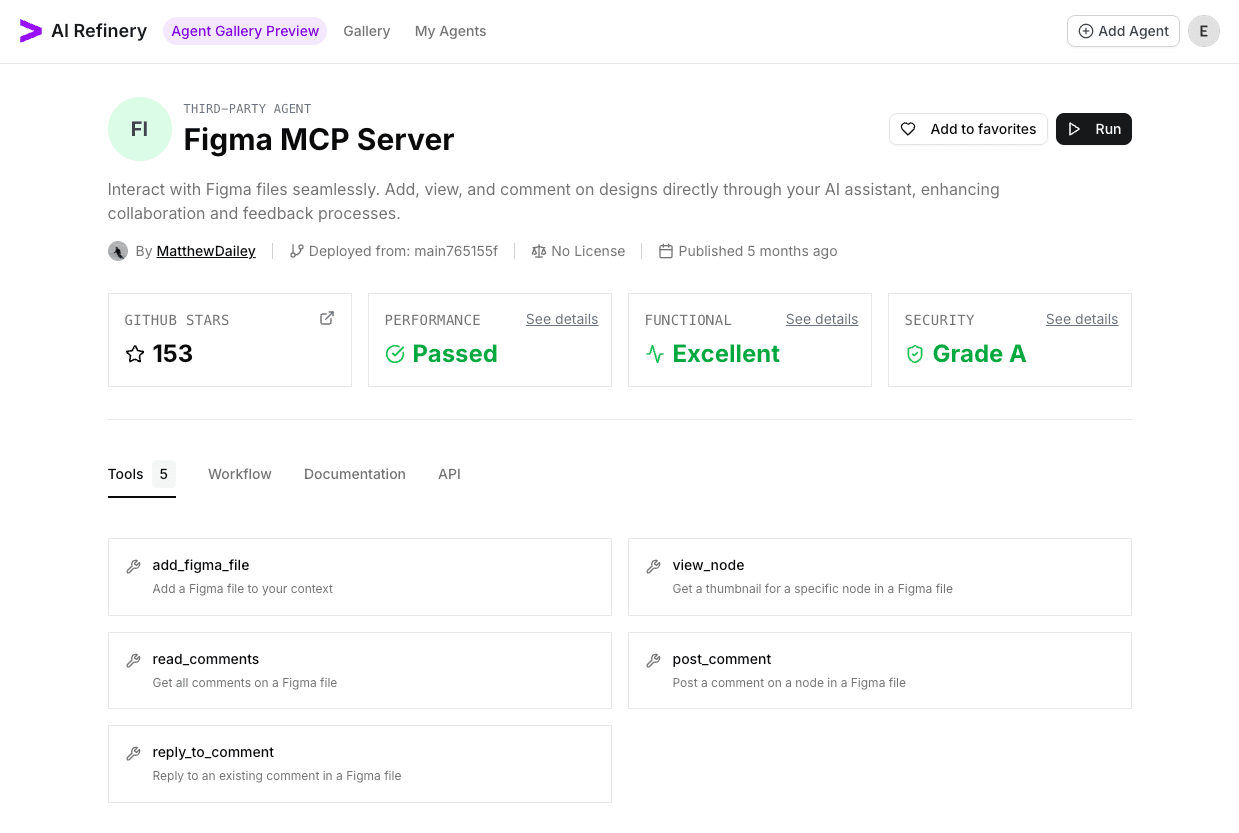
- From the gallery home, search or browse to the agent you need to execute.
- Select the agent card to open its detail view and review it.
2. Launch the Agent
- Choose Run (top-right hand corner button) to open the launch dialog.
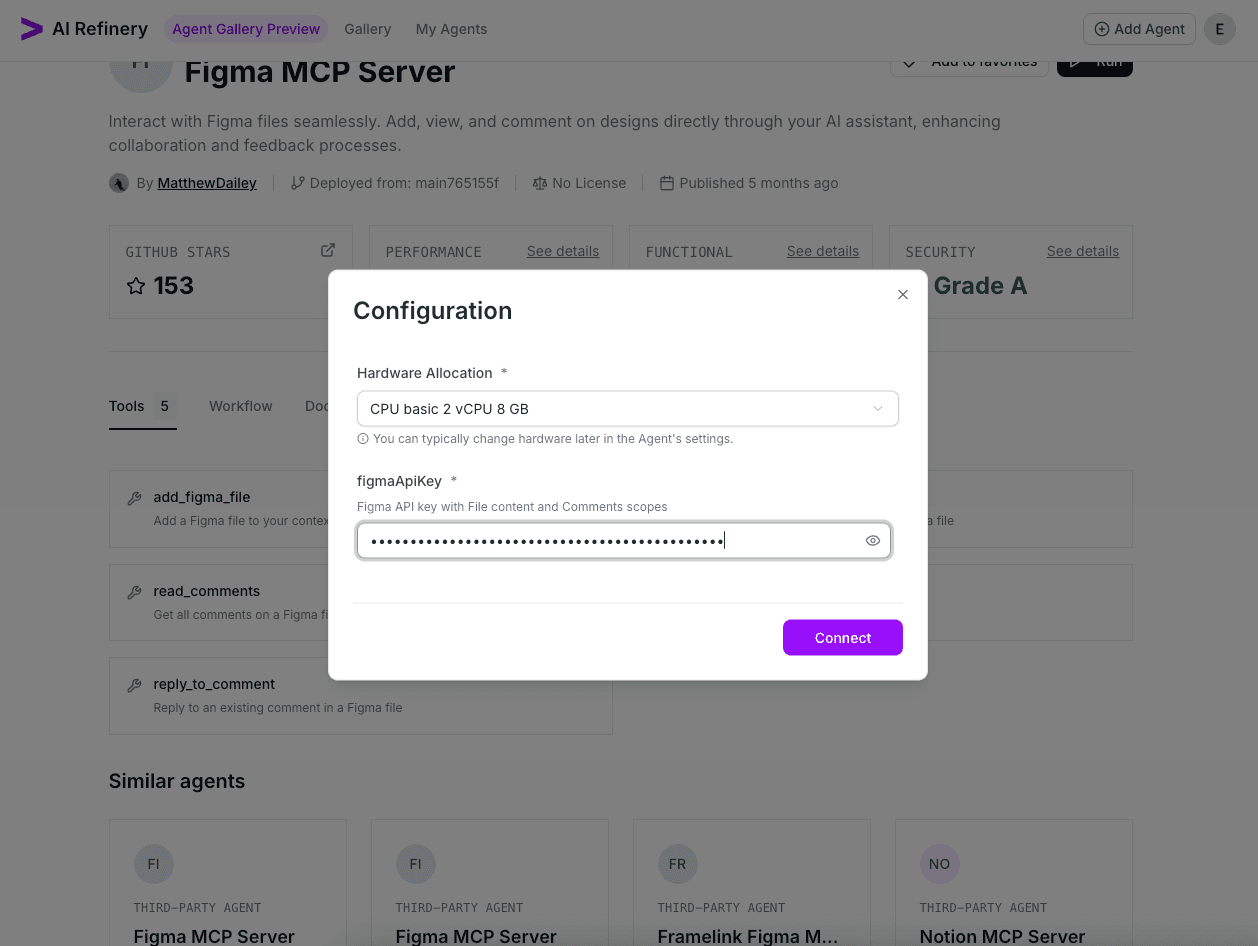
- Select a hardware allocation, which will specify the limits (CPU, RAM) for your agent.
- Enter any API keys or configuration settings - some agents have an optional section that you can expand for more configuration options.
- Select Connect to provision the agent.
3. Confirm the Agent Starts
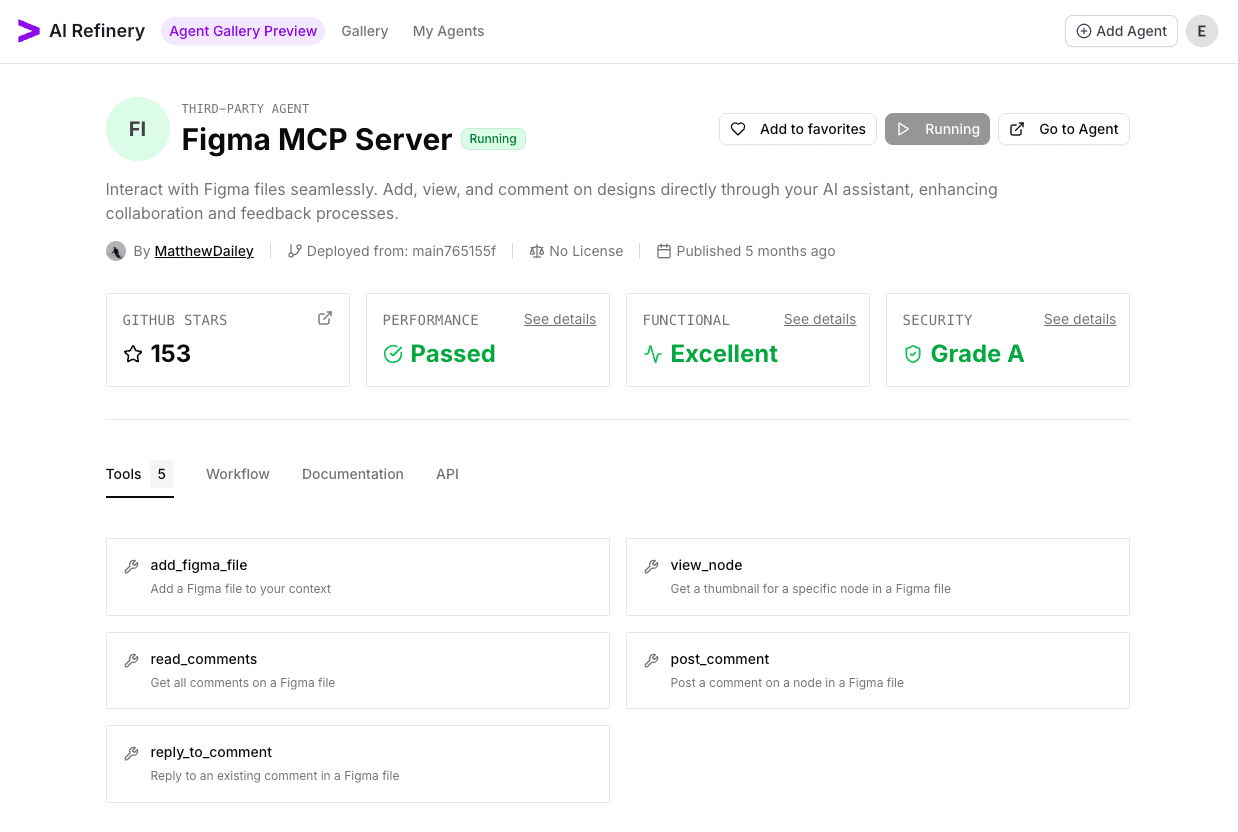
- When the run succeeds, Agent Gallery shows a confirmation message (green popup at the buttom). You should see the
Runbutton showingRunningonce the agent has been provisioned. Use Go to Agent to open the run console immediately.
4. Test the Agent Session
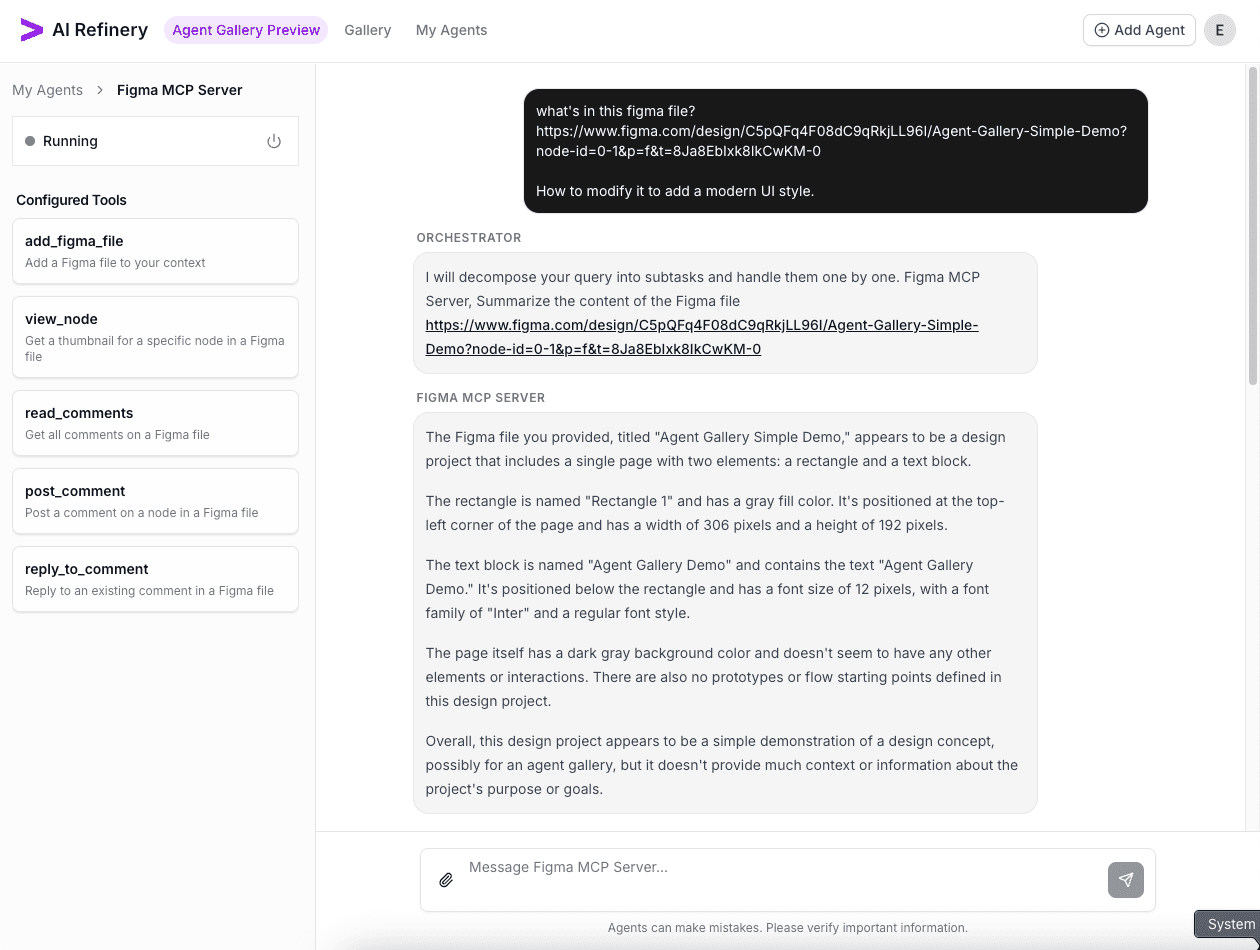
- In the run console, send a few representative prompts to ensure the agent behaves as expected.
- Capture evidence of successful outputs or anomalies so you can report them later.
5. Shut Down the Agent
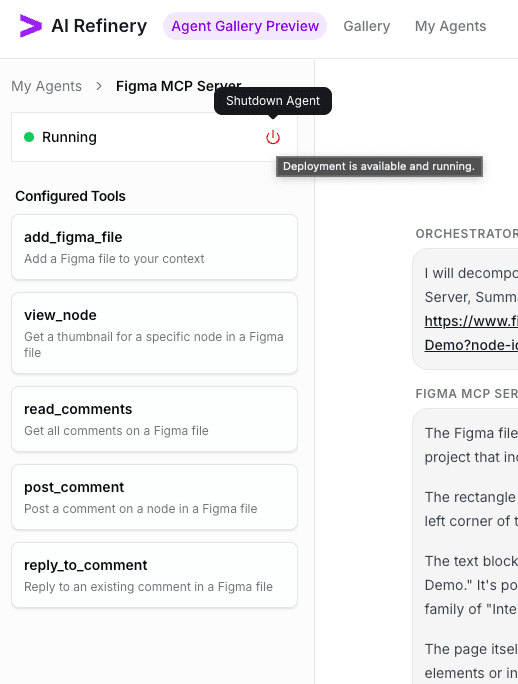
- When validation is complete, choose Shutdown Agent from the run console to release resources.
6. Review Active Runs
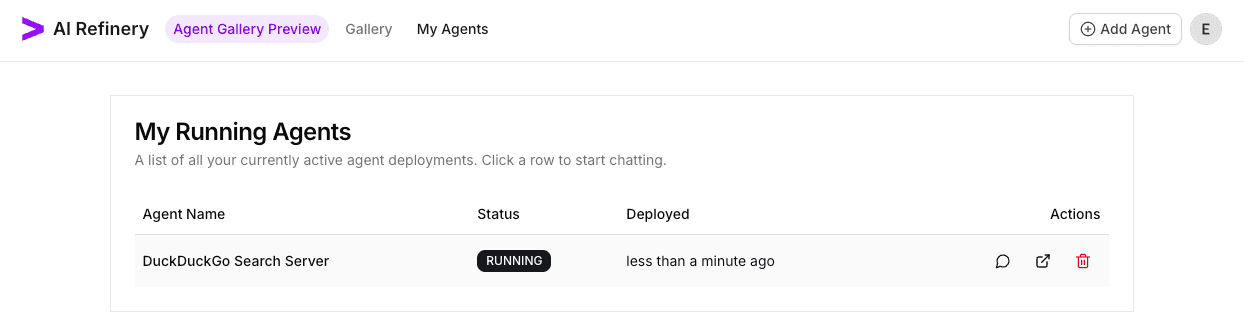
- Return to the Running Agents page (redirects automatically if you shutdown an agent) to verify the agent no longer appears in the active list. If it remains, you can shutdown by clicking the Delete icon.