Agent Gallery OperationsDiscover Agents
Browsing and Searching
Step-by-step walkthrough for finding agents in the gallery.
Follow this walkthrough to locate the right agent by exploring the gallery, running targeted searches, applying filters, and jumping to similar agents.
Browse the Agent Gallery
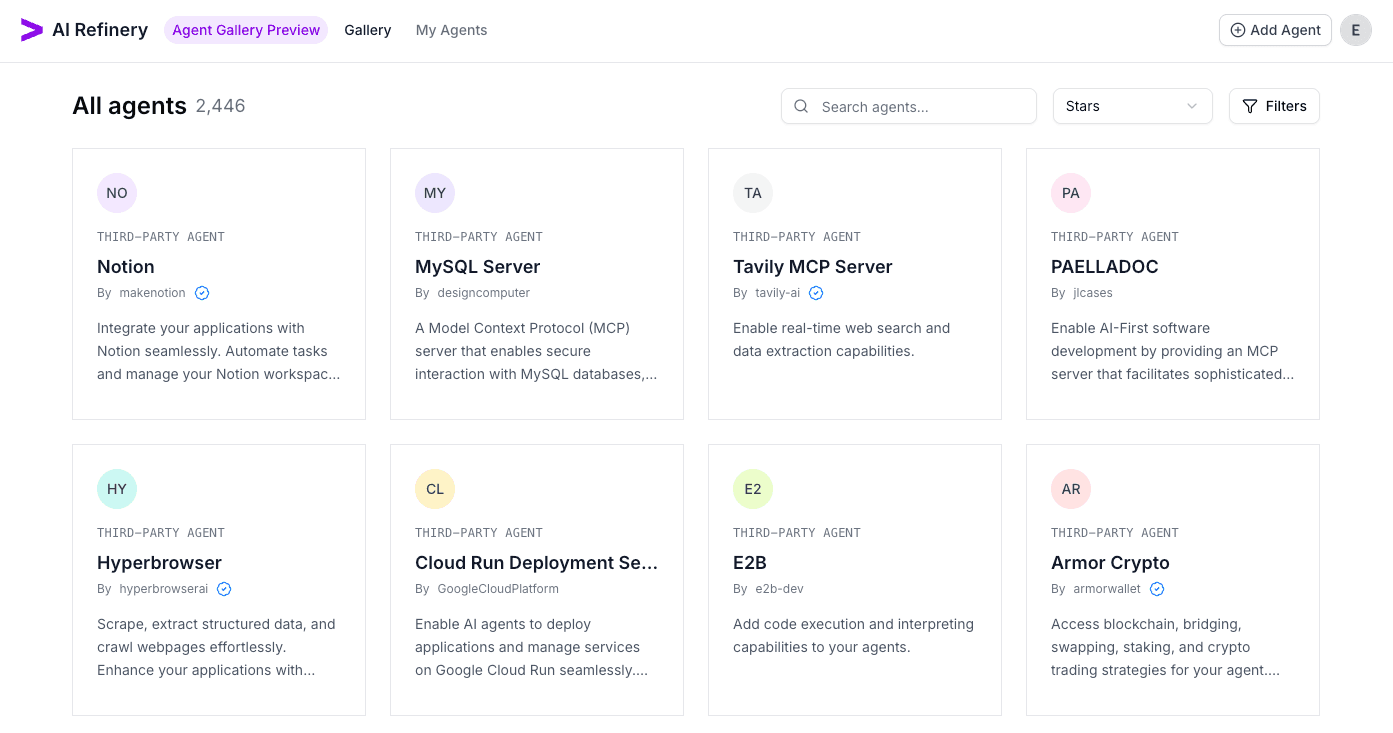
- From the main navigation, open Agent Gallery Preview > Gallery to reach the discover view.
- Confirm the
All agentscounter and review the top controls (Search,Stars, andFilters) to understand how the view is configured. - Each agent card has a description of the agent, agent type, owner, and verification badges.
- Click on an agent card to view detailed information about that agent.
Search for Agents
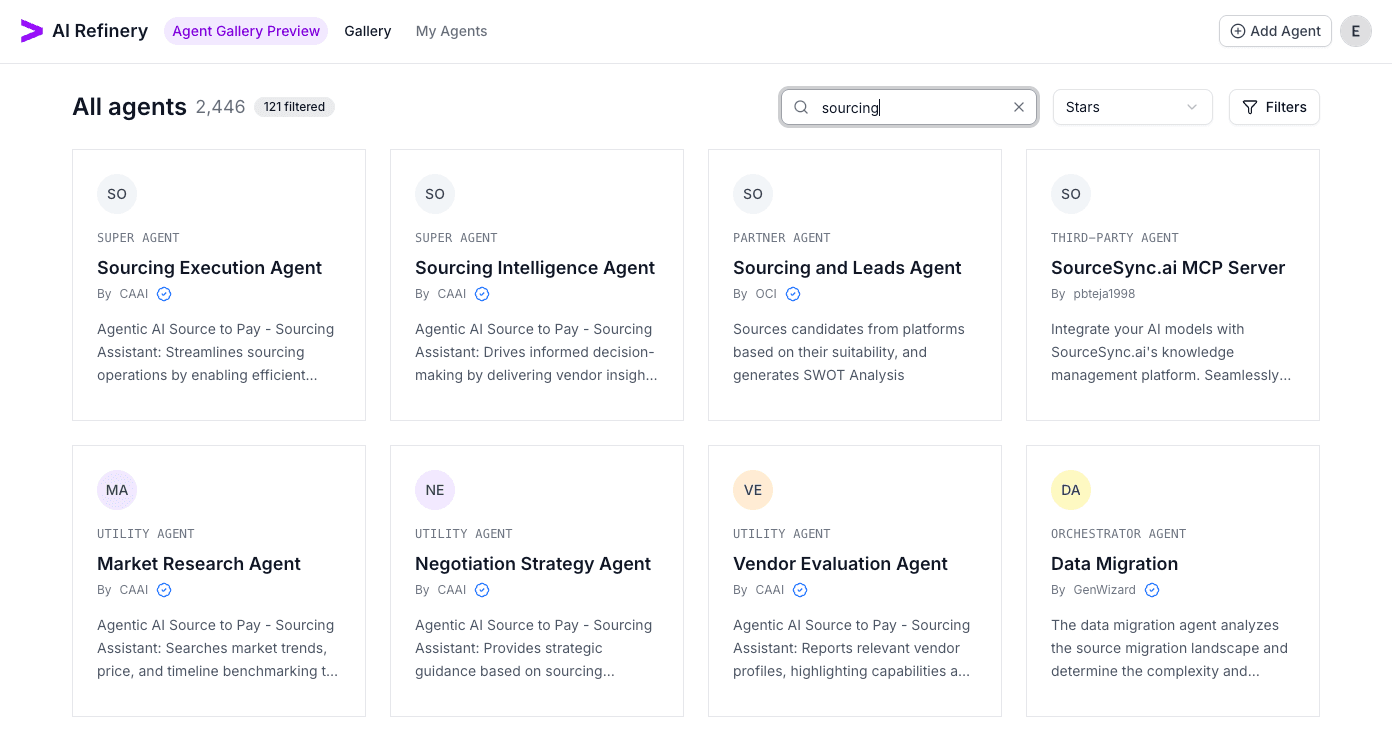
- Place the cursor in the search input and enter a keyword such as
sourcing,sales, orsupport. - Watch the results update as you type; the badge next to the total count highlights how many agents match the query.
- Add or remove keywords until the list is scoped to a manageable set, then use the clear
xicon if you need a fresh search. - Open promising matches to inspect their details by clicking on their card.
Sort Agent Results
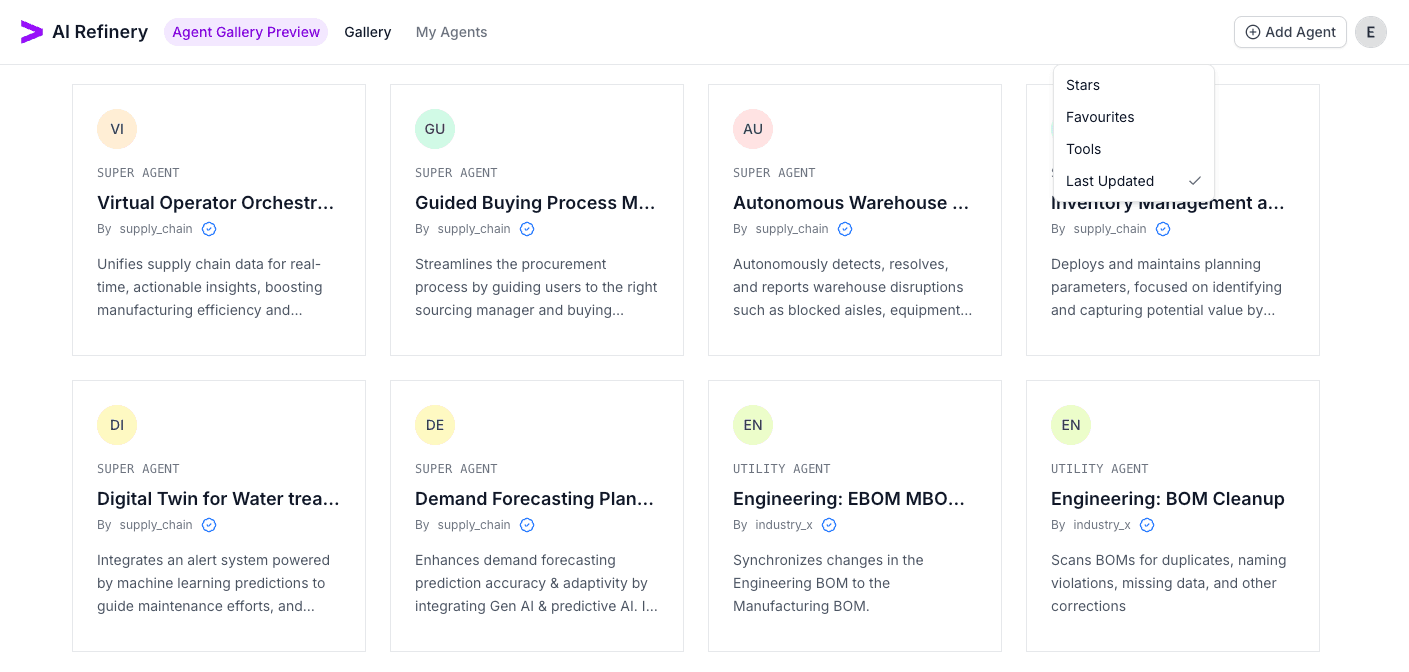
- Use the
Starsdropdown to open the sort menu and switch between relevance signals such asFavourites,Tools, orLast Updated. - Select the sort criterion that best supports your evaluation, for example
Last Updatedto surface recently maintained agents. - Confirm the grid reorders immediately and scan the top row to verify the new sort matches your expectations.
- Try other sort orders like
Toolswhich sorts in descending order based on the number of tools the agent has, orFavouriteswhich is the number of times the agent has been favourited by gallery users.
Filter Agents

- Click
Filtersto open the drawer and review available facets such asAgent Type,Accenture, andSource. - Toggle the chips that match your requirements, for example
Superagents fromInternalsources, to narrow the grid. - Note the badge on the
Filtersbutton and thefilteredcounter byAll agentsto confirm how many constraints are active. - Reset individual facets or clear all filters as needed, and combine them with search keywords for precise targeting.
Find Similar Agents
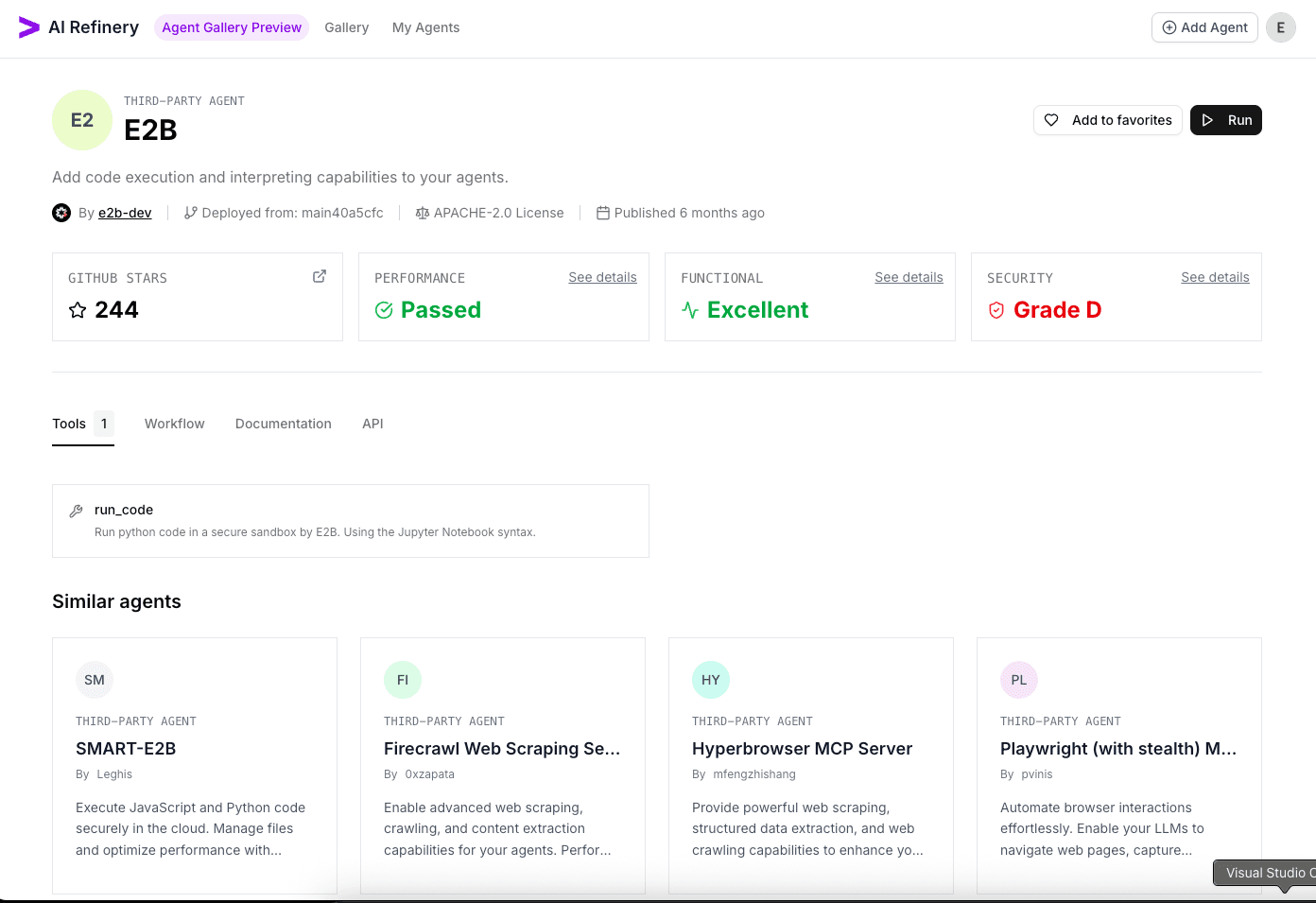
- From an agent detail view, review the summary metrics (GitHub stars, performance, functionality, and security) to understand its profile.
- Scroll past the capabilities tabs until you reach the
Similar agentssection near the bottom of the page. - Compare each suggested agent, using their cards to spot shared capabilities, coverage areas, or maintainers.
- Open relevant suggestions by clicking on their card.
Save Favourite Agents
Login required
Saving agents or viewing your favourites requires an authenticated Agent Gallery session. Follow the login steps in Logging In to Agent Gallery before using favourites.
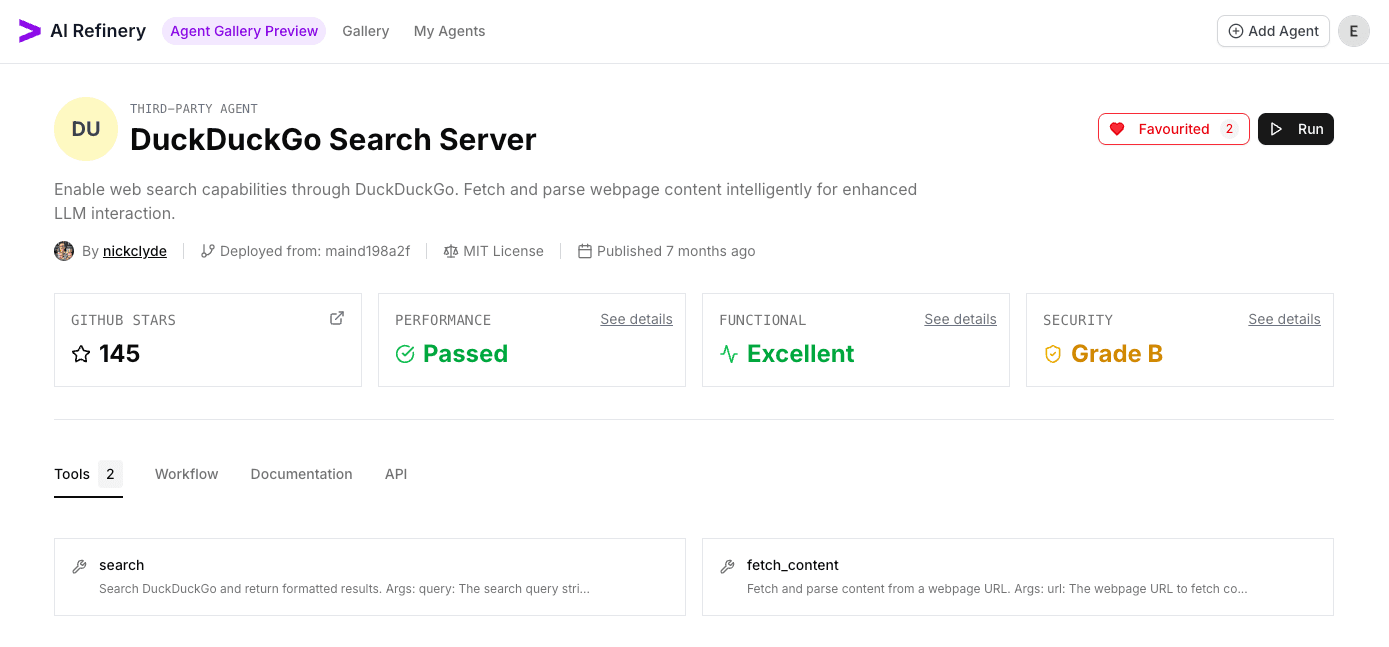
- When you find an agent worth revisiting, click the heart icon next to
Runto toggle its favourite status. - Confirm the badge switches to
Favouritedand shows the running total of users who saved the agent. - Favourite multiple agents as you evaluate options so they stay one click away from the favourites list.
Review My Favourites
Login required
Access to the My Favourites view is gated to logged-in users. Refer to Logging In to Agent Gallery if you need to authenticate before opening this page.
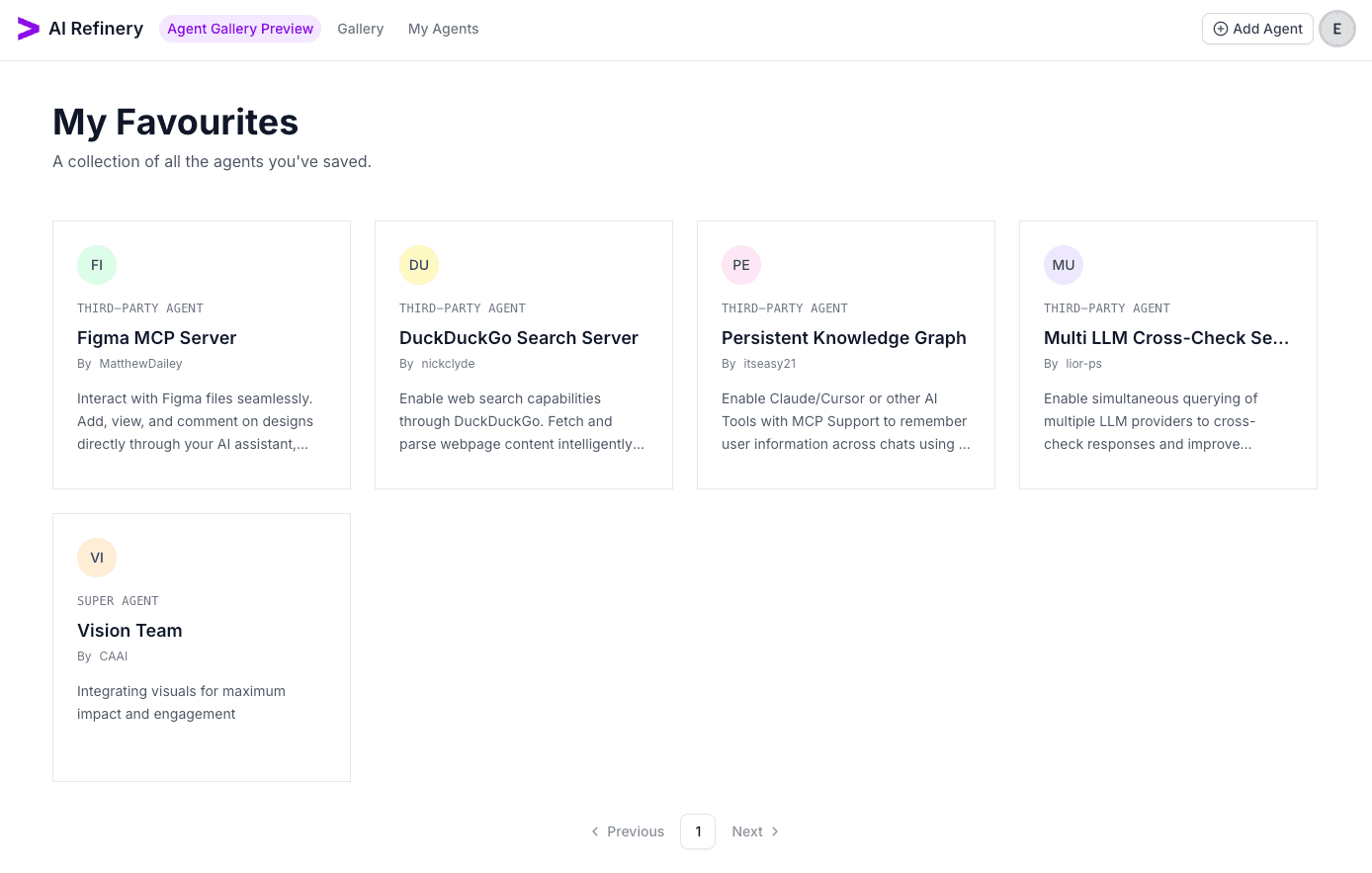
- Click your profile avatar in the top-right corner and choose
My Favouritesto load your saved favourites view. - Scan the grid, which mirrors the gallery card layout.
- Use pagination controls when you have more than one page of saved agents, or remove items by unfavouriting them from their detail pages.