Certification Workflow
Step-by-step guide to certifying an agent through the Agent Gallery certification interface.
Certification Workflow
The Agent Gallery provides a user-friendly interface for certifying agents through a structured, multi-step workflow. This guide walks you through the complete certification process from start to finish.
Overview
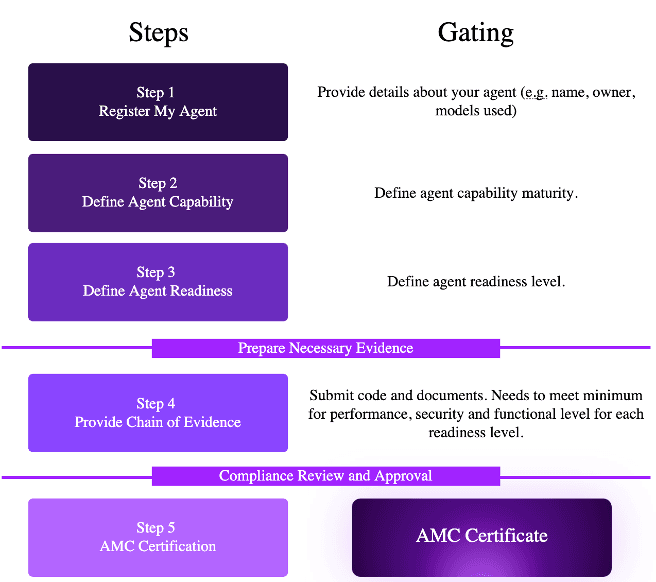
The certification workflow consists of five main steps:
- Agent Details - Enter agent metadata and basic information
- Capability Maturity - Assess agent interaction, autonomy, and scope
- Readiness - Select the current production tier/level
- Code Assessment - Upload agent code and run certification scans
- Agent Rating - Review the composite certification rating and download certificate
Step 1: Agent Details
In this step, you provide essential metadata about your agent.
Required Fields
- Agent Name: A descriptive name for your agent
- Owner/Organization: The organization or individual responsible for the agent
- Agent Type: Select from Orchestrator, Super, Utility, Partner, or Third-Party
- License: Choose the license type (MIT, Apache-2.0, ISC, BSD, etc.)
- Agent Version: The version number of this agent release
- Agent Purpose: Brief description of what the agent does
- Agent Domain: The primary domain or use case (e.g., "Data Analysis", "Customer Support")
- Frameworks Used: List of frameworks (e.g., "AI Refinery", "MCP", "A2A")
- Models Used: LLM models used by the agent
- Guardrail Models: Models used for guardrail enforcement
- Observability Coverage: Description of monitoring and observability capabilities
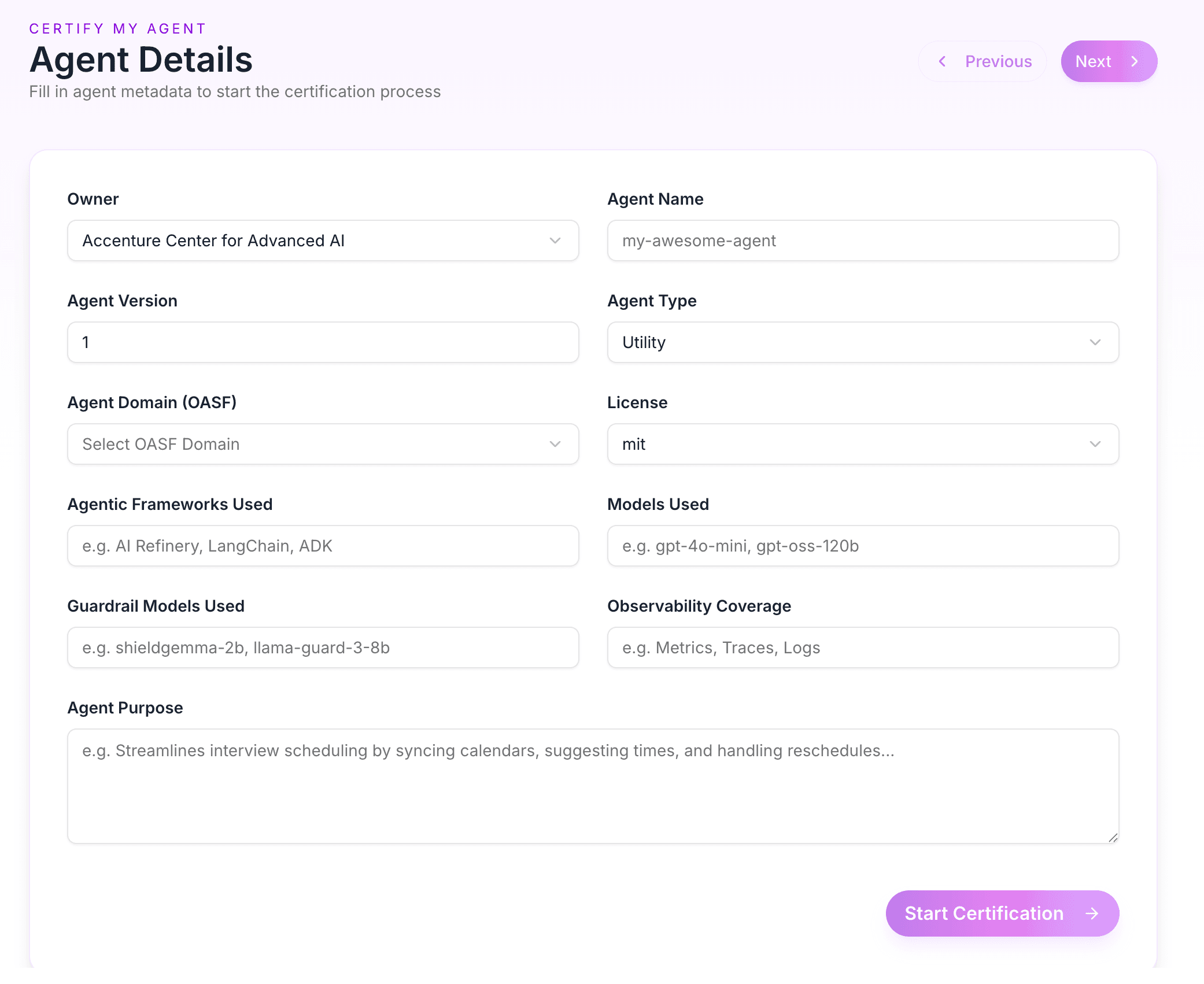
Once all required fields are completed, click Next to proceed to the Capability Maturity assessment.
Step 2: Capability Maturity
This step evaluates your agent against the AM-5 maturity framework across three dimensions. Select the level that best matches your agent's capabilities for each dimension. The system uses these selections to determine the overall maturity rating (L1–L5).
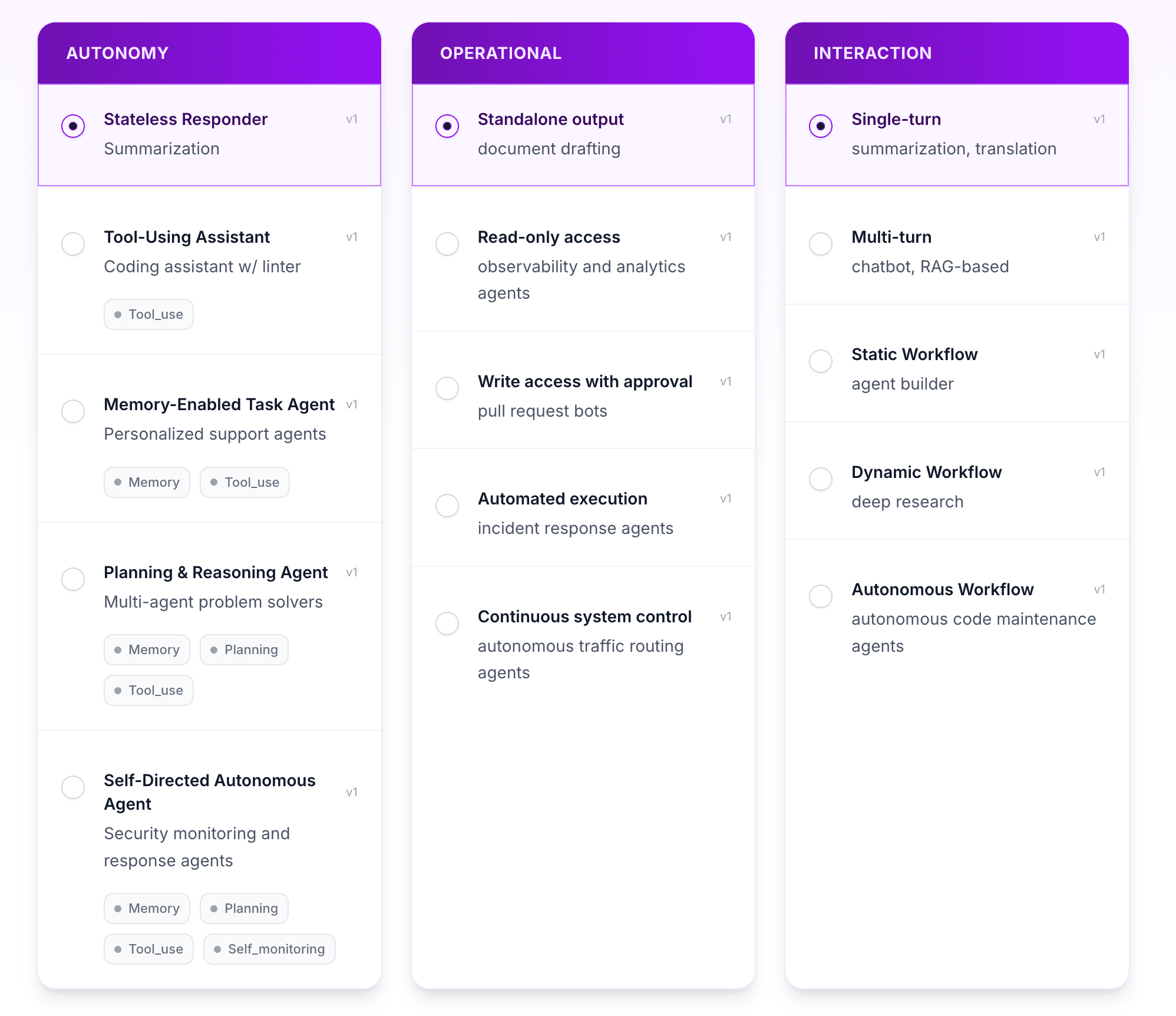
For the full framework and how each level is defined, see Agent Maturity.
Interaction (user engagement pattern)
- Level 1 – User as Operator: User provides step-by-step instructions for single, predefined tasks (e.g., summarization, translation)
- Level 2 – User as Collaborator: User delegates complete, well-defined multi-step tasks with human supervision
- Level 3 – User as Consultant: User provides a goal to a system of agents that coordinate amongst themselves; user acts as consultant
- Level 4 – User as Approver: User approves or rejects multi-step plans generated by the agent(s) in response to high-level goals
- Level 5 – User as Observer: User observes performance against high-level, long-running objectives rather than managing tasks or plans
Autonomy (decision-making independence)
- Level 1 – Task Executor: Follows fixed scripts or rigid rules; no independent decision-making
- Level 2 – Trustworthy Assistant: Executes sequences of related actions; requires human supervision for exceptions and ambiguities
- Level 3 – Team Player: Multiple agents communicate and pass information to complete workflows without step-by-step user management
- Level 4 – Goal-Driven Professional: Independently devises strategy, creates sub-tasks, and sequences actions; incorporates feedback to refine plans
- Level 5 – Autonomous Worker: Full autonomy over resources, workflows, and long-term strategy; self-optimizes over time
Operational (system and environment interaction)
- Level 1 – Standalone output: Produces output independently without system integration (e.g., document drafting)
- Level 2 – Read-only access: Observes and analyzes data from systems (e.g., observability and analytics agents)
- Level 3 – Write access with approval: Performs actions requiring human oversight (e.g., pull request bots)
- Level 4 – Automated execution: Executes actions without direct human approval per step (e.g., incident response agents)
- Level 5 – Continuous system control: Autonomous traffic routing and continuous system management without human intervention
Step 3: Readiness
Select the Technology Readiness Level (TRL) — the current production tier/level that best describes your agent's operational readiness. This choice appears in the certification UI as Readiness and determines how the agent is positioned in its lifecycle.
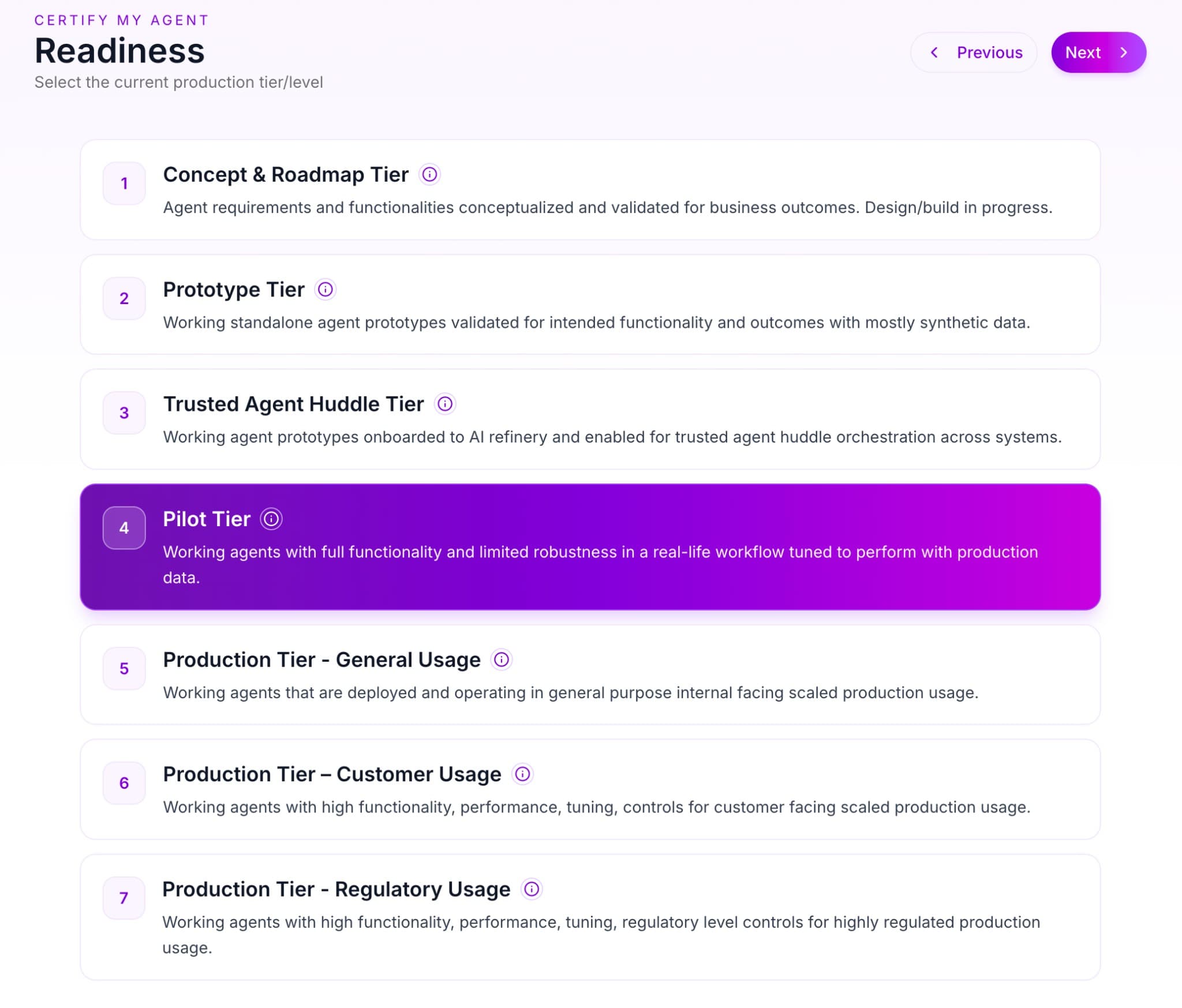
| Level | Tier | Description |
|---|---|---|
| 1 | Concept & Roadmap Tier | Agent requirements and functionalities conceptualized and validated for business outcomes. Design/build in progress. |
| 2 | Prototype Tier | Working standalone agent prototypes validated for intended functionality and outcomes with mostly synthetic data. |
| 3 | Trusted Agent Huddle Tier | Working agent prototypes onboarded to AI Refinery and enabled for trusted agent huddle orchestration across systems. |
| 4 | Pilot Tier | Working agents with full functionality and limited robustness in a real-life workflow tuned to perform with production data. |
| 5 | Production Tier – General Usage | Working agents that are deployed and operating in general purpose internal facing scaled production usage. |
| 6 | Production Tier – Customer Usage | Working agents with high functionality, performance, tuning, controls for customer facing scaled production usage. |
| 7 | Production Tier – Regulatory Usage | Working agents with high functionality, performance, tuning, regulatory level controls for highly regulated production usage. |
Higher readiness levels have more comprehensive certification requirements. For how TRL fits with maturity and certification, see Agent Maturity and Agent Readiness Measures.
Step 4: Code Assessment
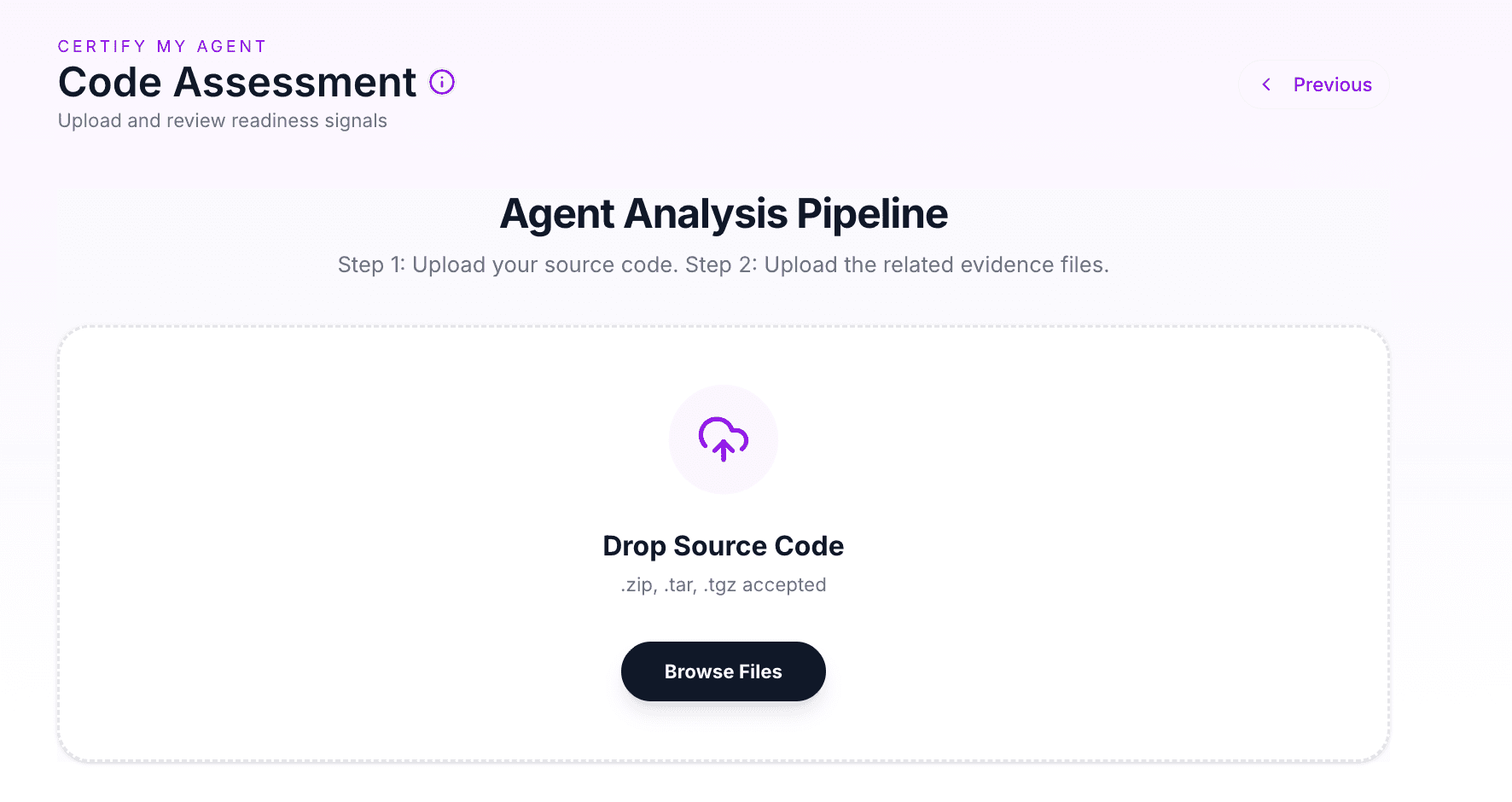
This step is for uploading and reviewing readiness signals. The Agent Analysis Pipeline has two parts: upload your source code, then upload the related evidence files.
Upload Agent Code (Step 1)
In the Code Assessment screen, use the main upload area to submit your agent source code:
- Drop Source Code: Drag and drop your archive onto the dashed upload area, or click Browse Files to choose a file
- Accepted formats:
.zip,.tar,.tgz - Include all source code, configuration files, and dependencies in the archive. Maximum size is typically 100MB
After upload, the system stores your code securely and you can proceed to evidence submission and scans.
Evidence Submission (Step 2)
Upload the required documentation through the Evidence Submission interface to generate the secure audit bundle. Documents are organized into two phases:
Evidence submission requirements:
- All documents must be in PDF or DOCX format with a maximum size of 50MB per file
- Click Required sections on each document slot to see what content must be included
- Once all documents are uploaded, a secure evidence bundle is automatically generated
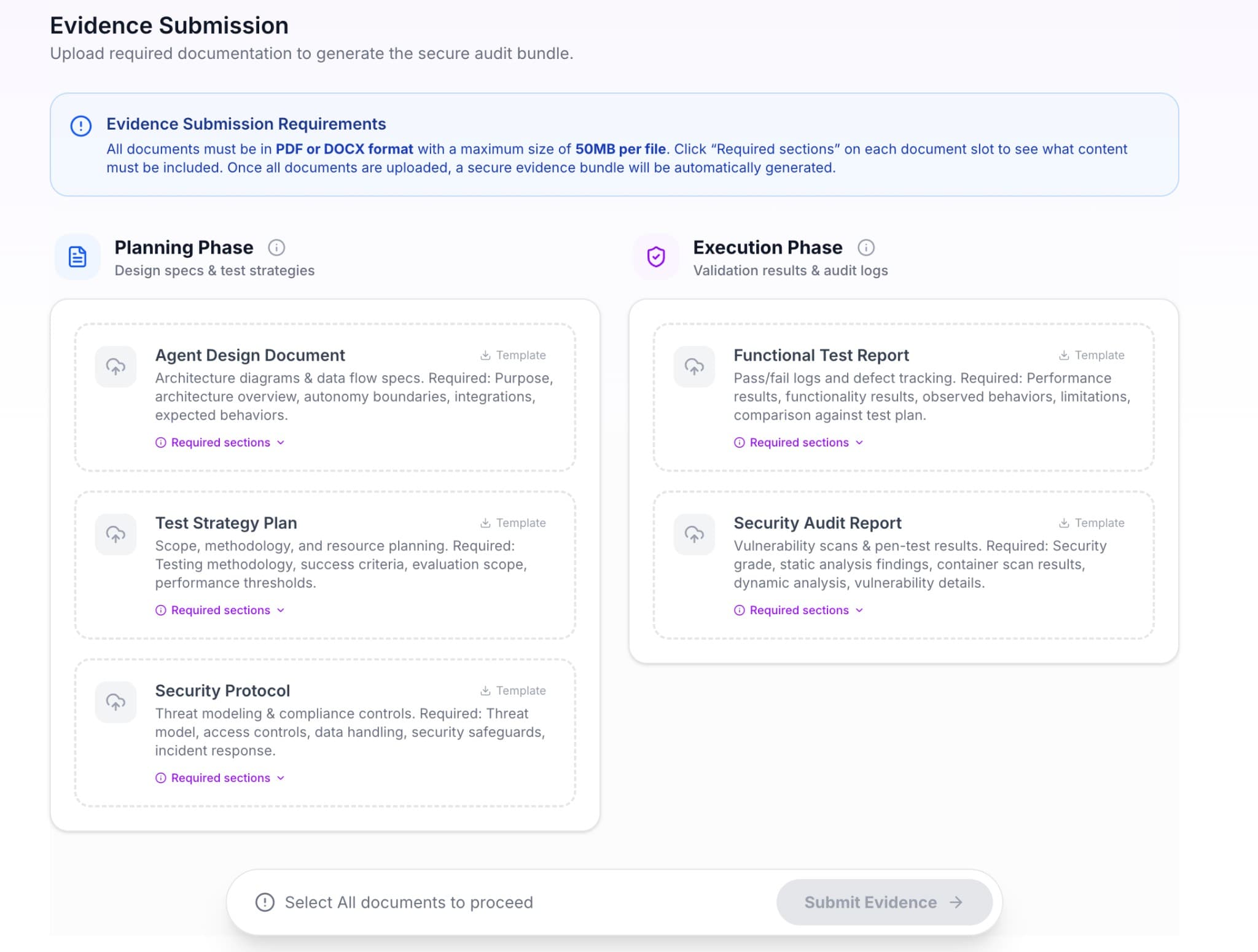
Planning Phase (design specs & test strategies):
- Agent Design Document: Architecture diagrams & data flow specs. Required: Purpose, architecture overview, autonomy boundaries, integrations, expected behaviors
- Test Strategy Plan: Scope, methodology, and resource planning. Required: Testing methodology, success criteria, evaluation scope, performance thresholds
- Security Protocol: Threat modeling & compliance controls. Required: Threat model, access controls, data handling, security safeguards, incident response
Execution Phase (validation results & audit logs):
- Functional Test Report: Pass/fail logs and defect tracking. Required: Performance results, functionality results, observed behaviors, limitations, comparison against test plan
- Security Audit Report: Vulnerability scans & pen-test results. Required: Security grade, static analysis findings, container scan results, dynamic analysis, vulnerability details
Use the Template link on each slot when available. When all documents are uploaded, select Select All documents to proceed and click Submit Evidence.
Run Certification Scans (Parallel Deep Scan)
Once your code is uploaded, click Start Scan to begin the certification process. The system runs a Parallel Deep Scan, executing three validation pipelines at the same time:
- Static Analysis (Comprehensive): Analyzes code for credential requirements, shell execution, filesystem access, dependency CVEs, README documentation, and related checks
- Guardrail: Tests AI guardrails against prompt injection and safety policies
- MCP Scan: Detects MCP tools and analyzes repository structure and interoperability
Scan Progress Monitoring
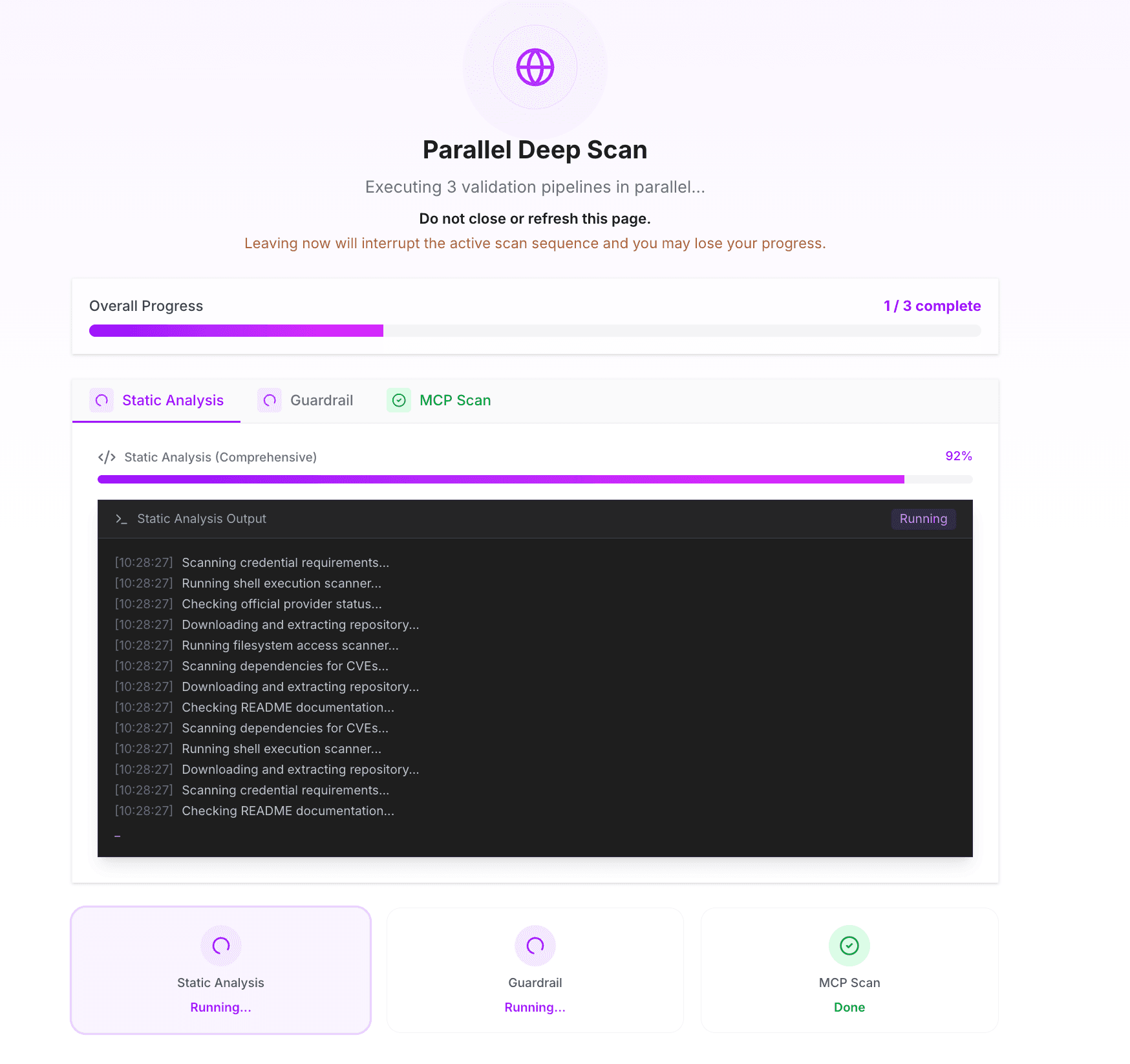
Do not close or refresh this page. Leaving will interrupt the active scan sequence and you may lose progress.
During the parallel deep scan you'll see:
- Overall Progress: A bar showing how many of the three pipelines are complete (e.g. 1/3 complete)
- Scan tabs: One tab per pipeline (Static Analysis, Guardrail, MCP Scan) with a spinner while running and a checkmark when done
- Focused scan view: For the selected tab, a per-scan progress bar and Static Analysis Output (or equivalent) with a live, timestamped log of steps (e.g. scanning credentials, running filesystem scanner, scanning dependencies for CVEs)
- Summary cards: At the bottom, a short status for each scan (Running... / Done)
Scans typically take several minutes depending on code size and complexity. When all three pipelines show Done, you can proceed to Step 5 to review the agent rating and detailed assessment report. Evidence for the Execution Phase (Functional Test Report and Security Audit Report) is typically uploaded after scans complete, using the same Evidence Submission interface (Planning Phase / Execution Phase) shown above.
Step 5: Agent Rating
The final step shows your agent's composite certification rating and the Detailed Assessment Report from the scan. A badge may show Analysis Incomplete until all pipelines and dynamic scans have finished.
Scan Results (Detailed Assessment Report)
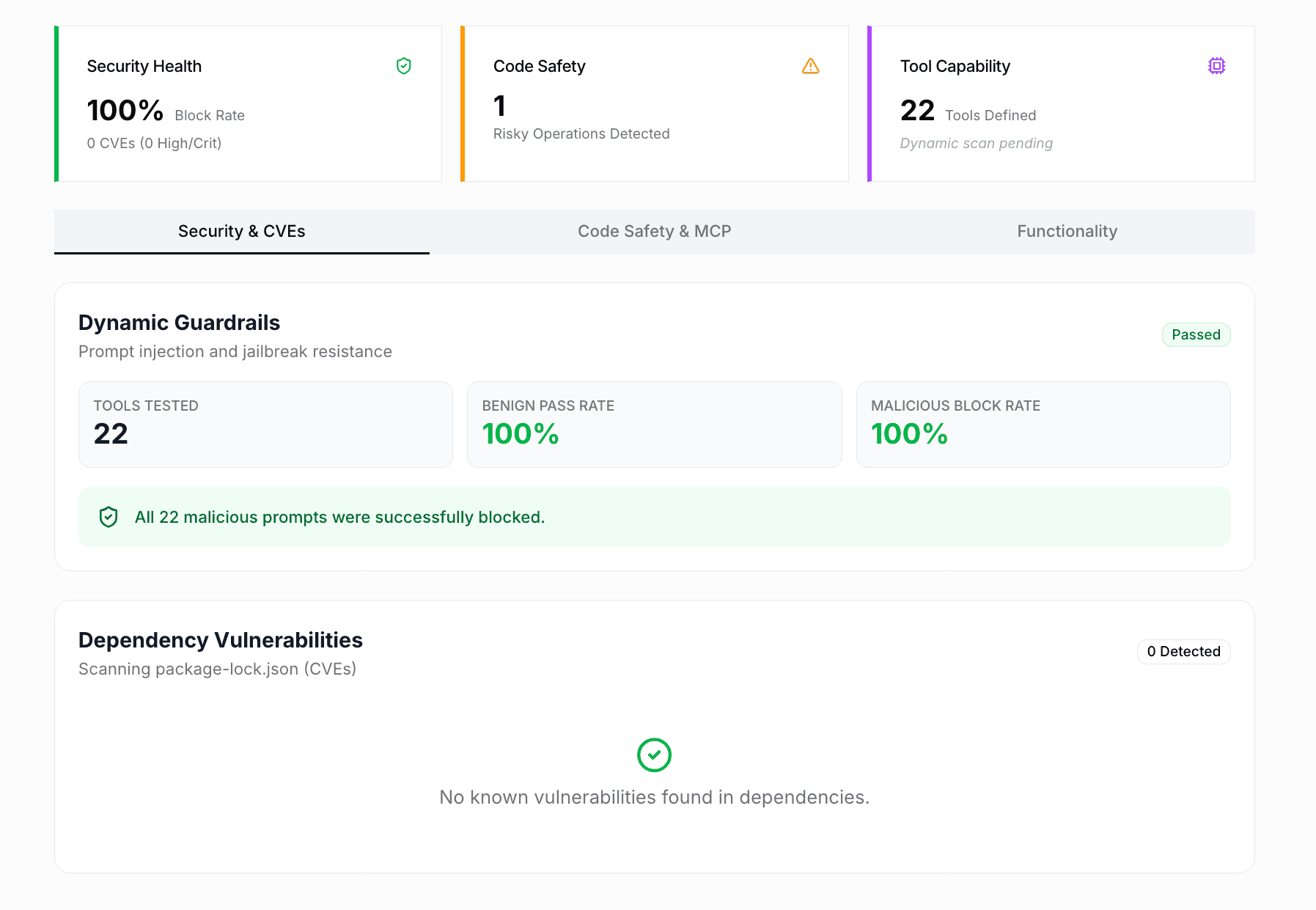
The report summarizes scan outcomes in three cards at the top:
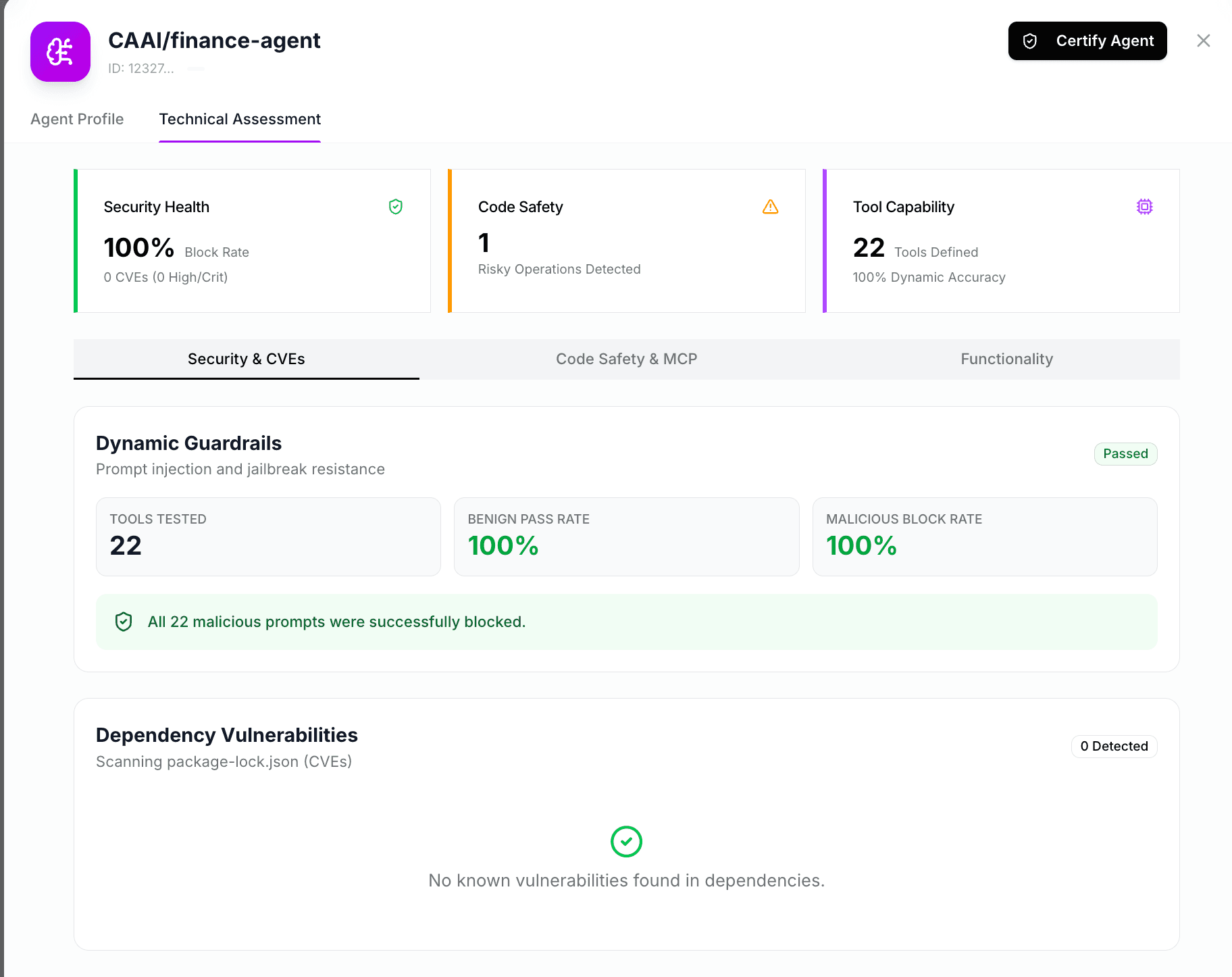
- Security Health: Block rate and CVE counts (e.g. 100% block rate, 0 CVEs / 0 High/Crit)
- Code Safety: Number of risky operations detected (e.g. filesystem, shell, or similar findings)
- Tool Capability: Number of tools defined and status (e.g. dynamic scan pending)
Below the summary cards, Detailed Results are organized in tabs:
- Security & CVEs:
- Dynamic Guardrails: Prompt injection and jailbreak resistance — status (Pass/Fail), tools tested, benign pass rate, malicious block rate. Failed items show reasons (e.g. benign prompt incorrectly blocked).
- Dependency Vulnerabilities: CVE scan of lockfiles (e.g. package-lock.json); count detected and a short message (e.g. no known vulnerabilities found).
- Code Safety & MCP: Code safety findings and MCP-related checks.
- Functionality: Ecosystem readiness and interoperability results.
Use this view to see exactly why a dimension passed or failed and to fix issues before downloading the certificate.
Certification Summary & Certificate
From the agent detail view you can open two main tabs that summarize certification:
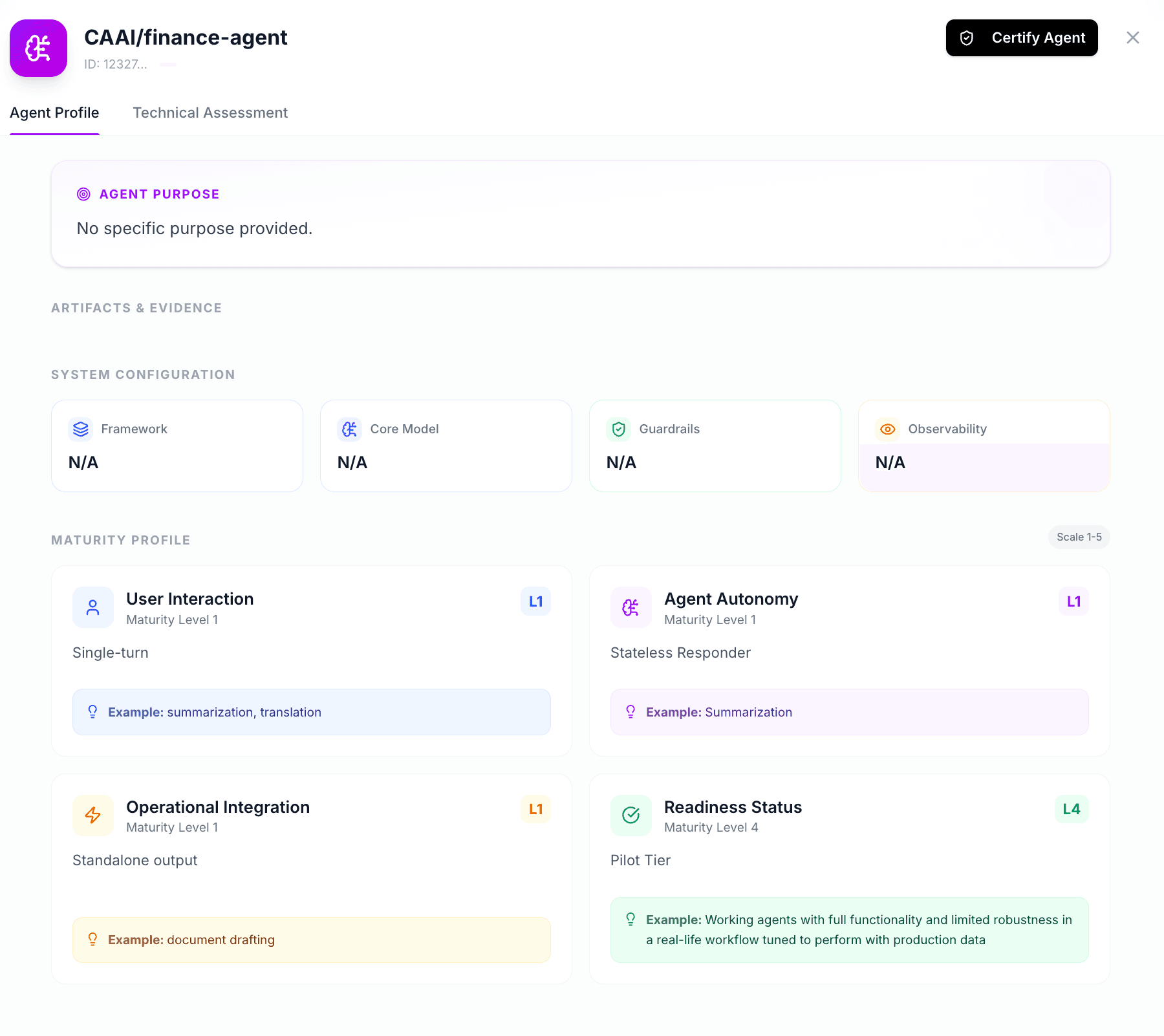
Agent Profile — Shows agent purpose, artifacts & evidence (e.g. system configuration: framework, core model, guardrails, observability), and the Maturity Profile with scale 1–5 for User Interaction, Agent Autonomy, Operational Integration, and Readiness Status (each with maturity level, description, and example). Use Certify Agent to start or return to the certification workflow.
Technical Assessment — Shows the certification summary in three cards (Security Health: block rate and CVEs; Code Safety: risky operations detected; Tool Capability: tools defined and dynamic accuracy) and detailed tabs (Security & CVEs, Code Safety & MCP, Functionality), including Dynamic Guardrails and Dependency Vulnerabilities. Once certification is complete, you can download a PDF certificate with agent metadata, scores, evidence bundle hash, and validity period.
Rescanning
You can rescan your agent at any time to update certification results:
- Navigate to the Code Assessment step
- Click Rescan for the specific scan type you want to rerun
- Wait for the scan to complete
- Review updated results
Rescanning is useful when:
- You've fixed vulnerabilities or issues
- You've updated agent code
- You want to verify improvements
Troubleshooting
Upload Failures
- File Size: Ensure your archive is under 100MB
- Format: Verify the file is a valid ZIP, TAR, or TAR.GZ archive
- Network: Check your internet connection and try again
Scan Failures
- Timeout: Large repositories may timeout - try reducing archive size
- Dependencies: Ensure all dependencies are included in the archive
- Configuration: Verify configuration files are present and valid
Authentication Issues
- Session Expired: Log out and log back in
- Permissions: Ensure you have certification permissions for your organization
Best Practices
- Prepare Documentation First: Have your design documents, test plans, and security plans ready before starting
- Test Locally: Run basic tests on your agent before uploading
- Review Results Carefully: Examine all scan results and address issues before proceeding
- Keep Evidence Organized: Maintain copies of all uploaded evidence for your records
- Regular Rescans: Periodically rescan to maintain up-to-date certification
Next steps
- Read Chain of Evidence to understand how certification establishes verifiable, auditable documentation.
- Read Certification API Reference for programmatic access to certification services.
- Read Performance Certification to see how we validate correctness & speed.
- Read Security Certification to learn the risk framework and grading pipeline.